Generating reports
Last updated: 2026-04-27
Each module of AASHTOWare Project (AWP) provides access to many custom reports developed for WisDOT. Below are instructions for generating and accessing three types of reports within AWP.
Tip: Click on the thumbnail images below to expand and view the content.
 General reports
A general report can be generated when working on a specific process within a module. Examples include the design project or proposal for a engineer's estimate or the Daily Diary Report or the Item Posting by Item report for a construction contract.
Generating Reports - General Reports (total video time 00:03:09, updated 03/18/2026)
The steps to generate two different reports appear below. Modify the steps slightly for other areas. Reports are most often found under the Open Component Actions Menu and sometimes the Open Row Actions Menu.
Daily Diary Report
- Go to the Contract Progress Summary | Diaries tab.
- Click on the Diary Date hyperlink.
- Select Open Component Actions Menu | Daily Diary Report under the Reports subsection.
NOTE: There are no historical diary reports.
- On the Generate Report - Output Options - Screen 4 of 5 component, click <Execute>.

- The report will be generated and saved to the local computer \downloads folder. The report can be viewed in Adobe Acrobat or similar application.
Item Posting by Item Report
- Within the contract, select the Items quick link.
- On the Contract Items component | General tab, search for an item.
- Select Open Row Actions Menu | Reports | Item Posting by Item.
- On the Generate Report - Set Parameters component, select the date range using the calendar. Click <Execute>.
- The report will be generated and saved to the local computer \downloads folder. The report can be viewed in Adobe Acrobat or similar application.
Preconstruction Validations report
- From any tab on the Proposal Summary component, select Open Component Actions Menu | Reports | Preconstruction Validations.
- On the Generate Report - Output Options, click <Execute>.
- The report will be generated and saved to the local computer \downloads folder. Review the report in Adobe Acrobat or similar application for project or proposal data entry issues including missing projects, road segments, structure segments, categories, work types, design firms, main sites; duplicate sites or midpoints; invalid locations; project or proposal item issues; and verifying the proposal has a controlling project. Correct any identified errors and rerun this report.
Global reports
There are two types of global reports in AASHTOWare Project.
- One global report type can be generated to compile multiple records for a contract into a single report. Examples of this global report include the Daily Diary Report, Item History to Date Report, Payment Estimate for Contractor, Explanation of Variation Report, and the Utility Conflict Report to name a few.
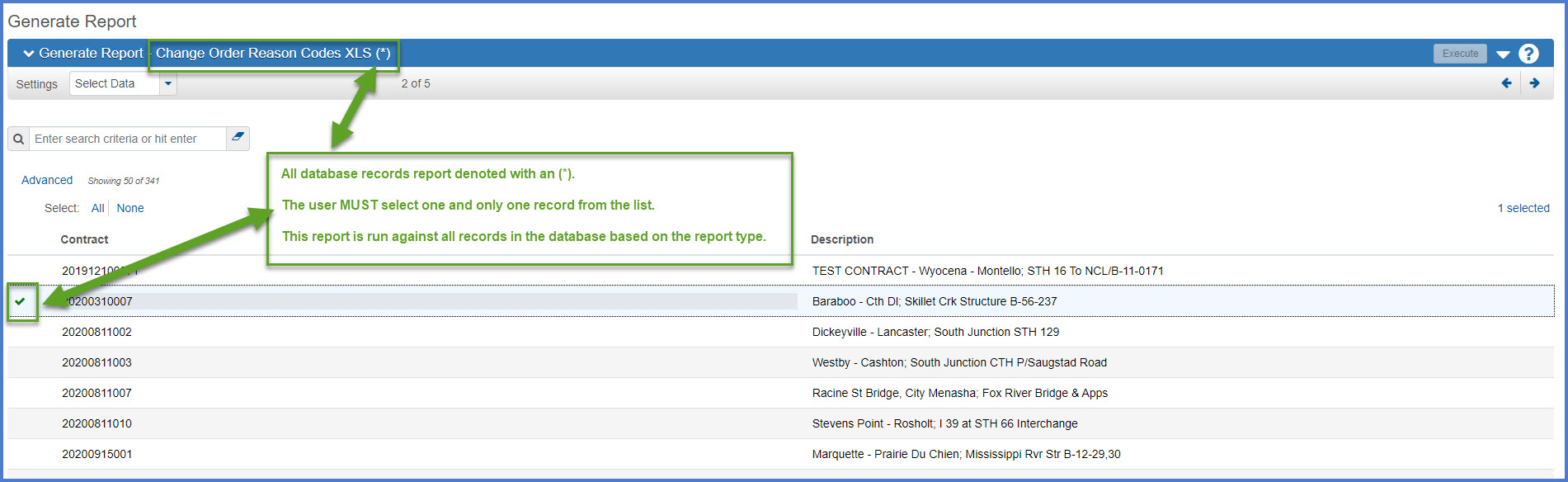
- The other type of global report is generated to include all records for all contracts in the system upon creation. Report examples include Change Order Reason Codes XLS (*) and the Design Quality Index Performance (*). Many of these reports allow users to set data preference prior to generation. Once generated, these reports can be filtered to provide the information needed.
Generating Reports - Global Reports (total video time 00:05:59, updated 03/23/2026)
The steps to generate these report types appears below. Modify the steps slightly for other reports.
Daily Diary Report
- On the dashboard, select Open Global Actions Menu | Generate Report.
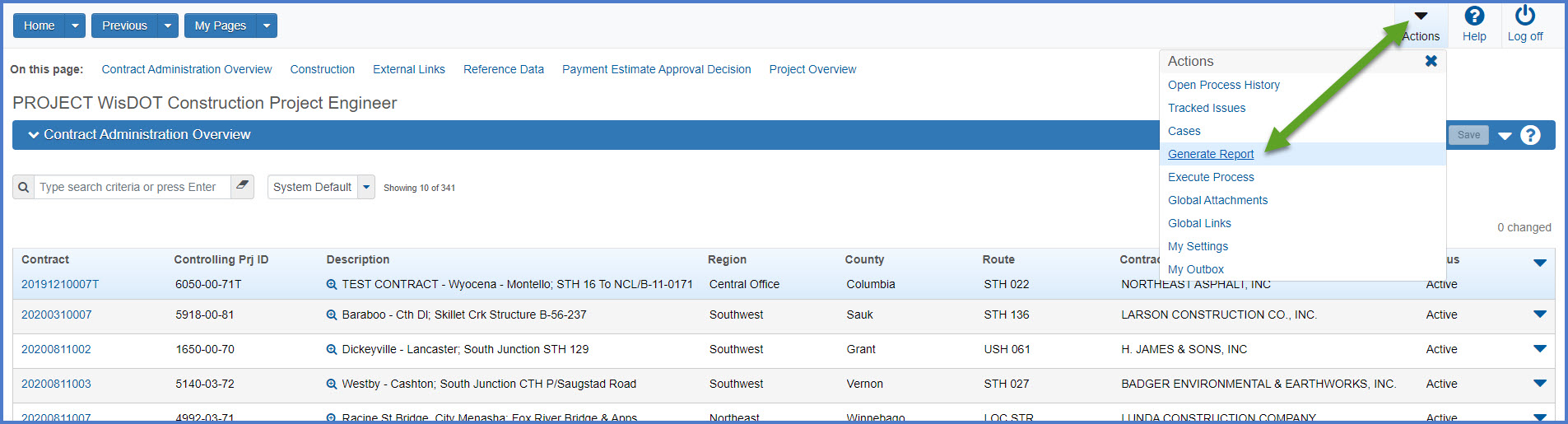
- On Generate Report screen 1 of 5, search for and select the "Daily Diary Report".
- On the Generate Report, screen 2 of 5, search for specific records for the report output. For example, select multiple dairies for a date range.
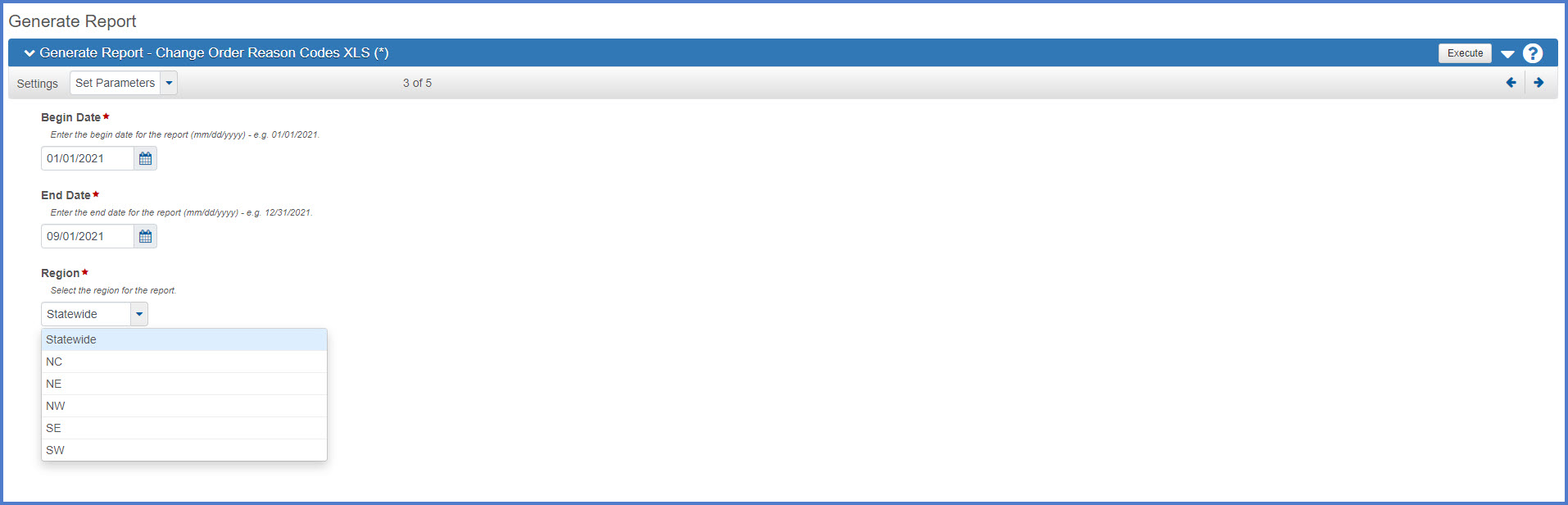
- On the Generate Report, screen 3 of 5, select report parameters if any are listed. Click <Execute> to generate the report.

Change Order Reason Codes XLS
- On the dashboard, select Open Global Actions Menu | Generate Report.
- On Generate Report screen 1 of 5, search for and select the "Change Order Reason Codes XLS (*)".
- On the Generate Report, screen 2 of 5, search for and select at least one record. Since this report is run against all records in the system, any record can be selected.
- On the Generate Report, screen 3 of 5, select report parameters which may include sub reports to print, a begin and end date range for the report, and if the report should be run at a statewide or region level. Click <Execute> to generate the report.
Historical reports
A historical report is the final report for a specific approval process that cannot be updated or regenerated. These reports are generated when a specific approval process is completed. The report is saved and attached as a PDF to a contract module component. Historical reports include daily work reports (DWRs), contract project design evaluations, contractor / subcontractor evaluations, and payment estimates. When the final approval is granted for one of the noted processes, the historical report is generated as a PDF file that is directly attached to the source record (e.g. change order number 0004, payment estimate number 0005, etc.). Historical reports are found under a record's Open Components Actions Menu or a record's Open Row Actions Menu.
Generating Reports - Historical Reports (total video time 00:01:53, updated 03/18/2026)
Info: For DWRs, they are part of an approved payment estimate and the associated historical DWR Report is created when the final approval is received on the payment estimate.
Below is an example of how to access a change order historical report. Modify these steps slightly for other areas.
- Go to the Contract Progress Summary | Change Orders tab.
- Select Open Row Action Menu | Historical Reports | Change Order Report for an approved change order.
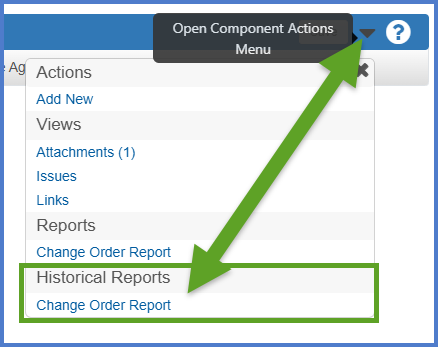
- The historical report will be downloaded to the local computer \downloads folder. The report can be viewed in Adobe Acrobat or similar application.
Scheduling a report
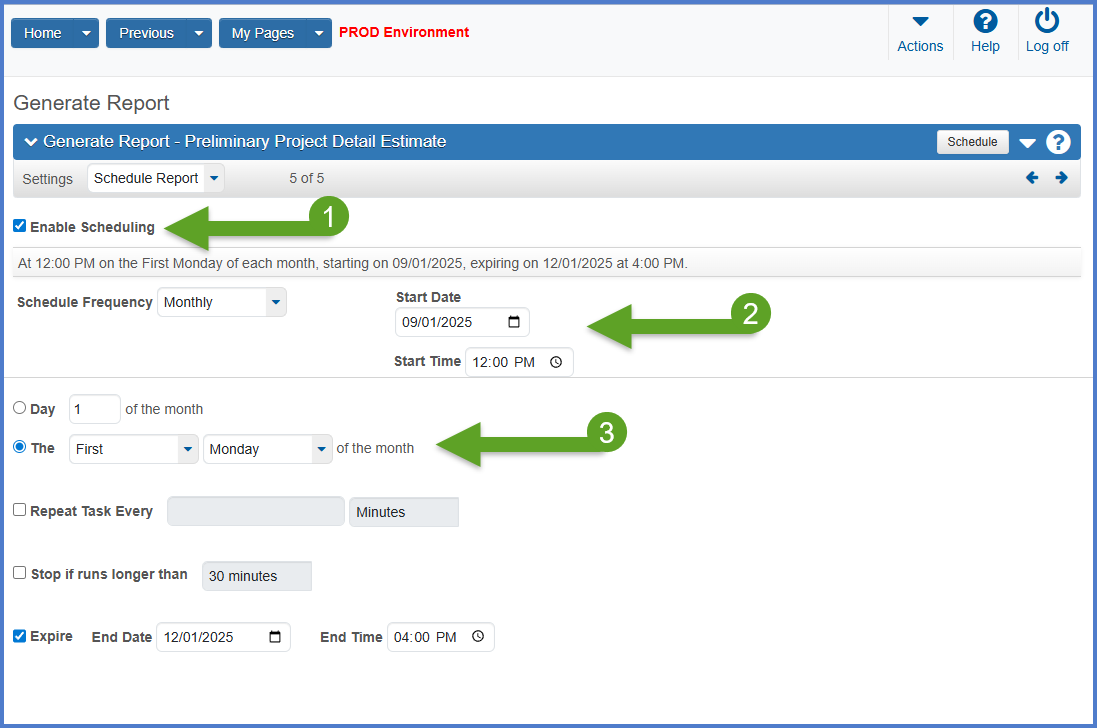
If the option to schedule the report was selected, complete the required fields below on Generate Report, screen 5 of 5.
- Click <Enable Scheduling> to schedule the report.
- Select the appropriate Schedule Frequency (e.g., Once, Daily, Weekly, Monthly) followed by a start date and time.
- The report can be scheduled to run once, on a certain day each month. The report can be repeated, stopped if it runs longer than a selected amount of time, or can expire on a certain date and time.
Refer to these web pages for more information about reports.
| Module | Web page |
|---|---|
| Civil Rights & Labor | Reports for Compliance Specialists |
| Construction | Construction reports |
| Construction | Final Construction Project Record Checklist (DT2075) |
| Construction | Payment estimate reports |
| Preconstruction Project | Generating a Preliminary Project Detail Estimate Report |
| Preconstruction Project | Generating a Preliminary Project Detail Estimate XLS File |
| Preconstruction Proposal | Generating the Preliminary Proposal Detail Estimate Report |
| Preconstruction Proposal | Generating the Proposal Price Schedule Report |
| Preconstruction Proposal | Generating the Estimate of Quantities Report |