Daily Work Reports (DWRs)
Last updated: 2026-04-27
Inspector Daily Work Reports are referred to as Inspector Daily Reports in FieldManager. These reports are used to track men and hours for each contractor on site plus equipment and item postings.
Tip: Click on the thumbnail images below to expand and view the content.
 To view an existing Daily Work Report (DWR)
- Log into AASHTOWare Project.
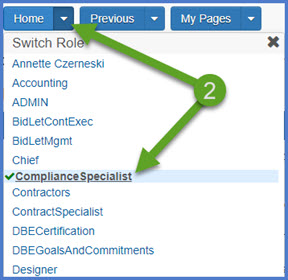
- Select the appropriate role (home button action arrow and select the role).
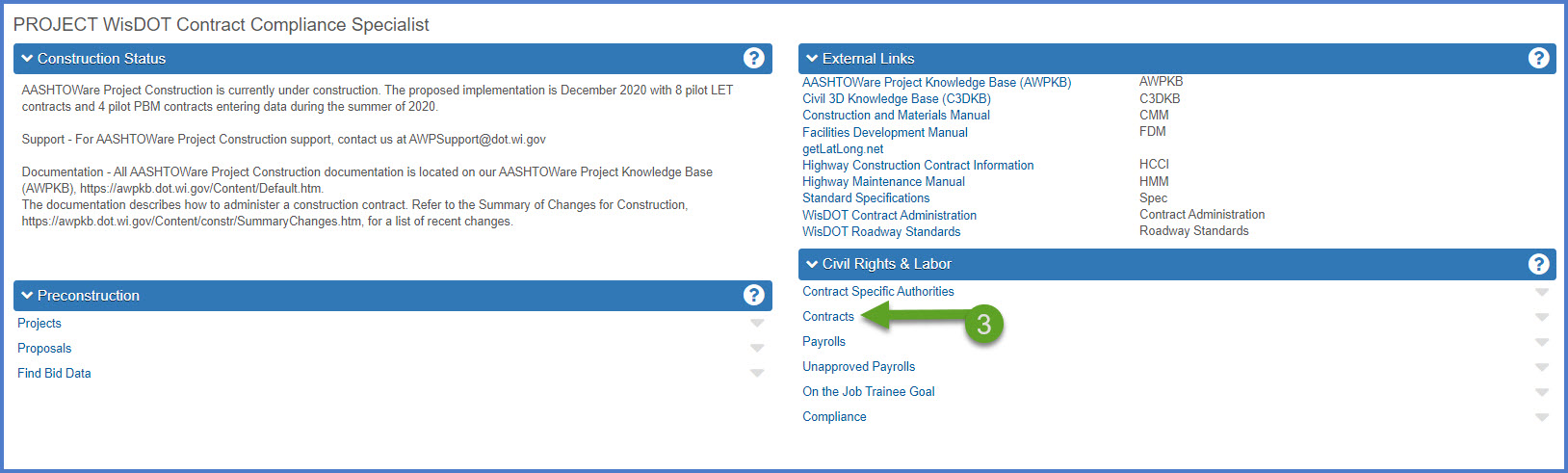
- From the dashboard, select the Contracts hyperlink under the CRL component.
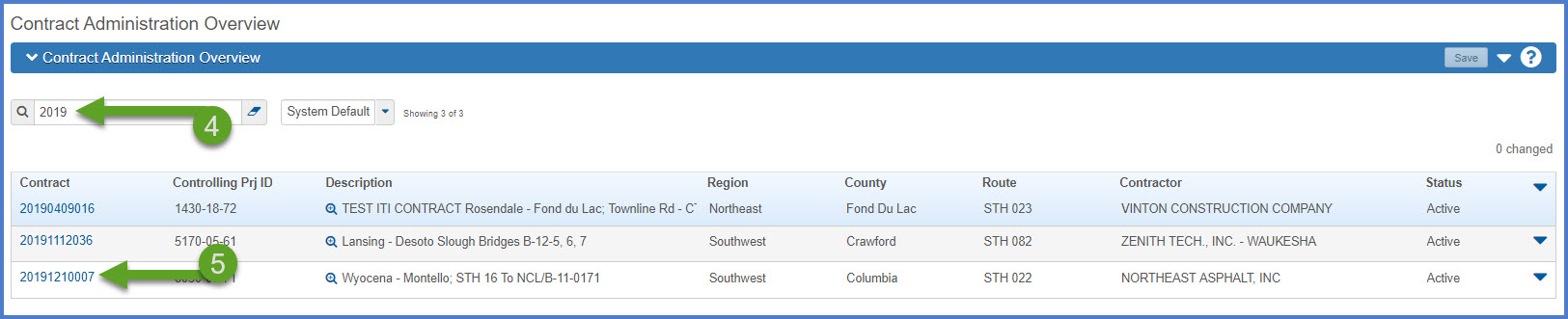
- Select the contract under Contract Administration Overview by searching for the Contract ID, controlling project ID, region, county or contractor in the search box.
Tip:
Go to How to Search for the Contract ID by Project ID if only an associated project ID is known. - Click on the contract ID hyperlink for the contract you are working on.
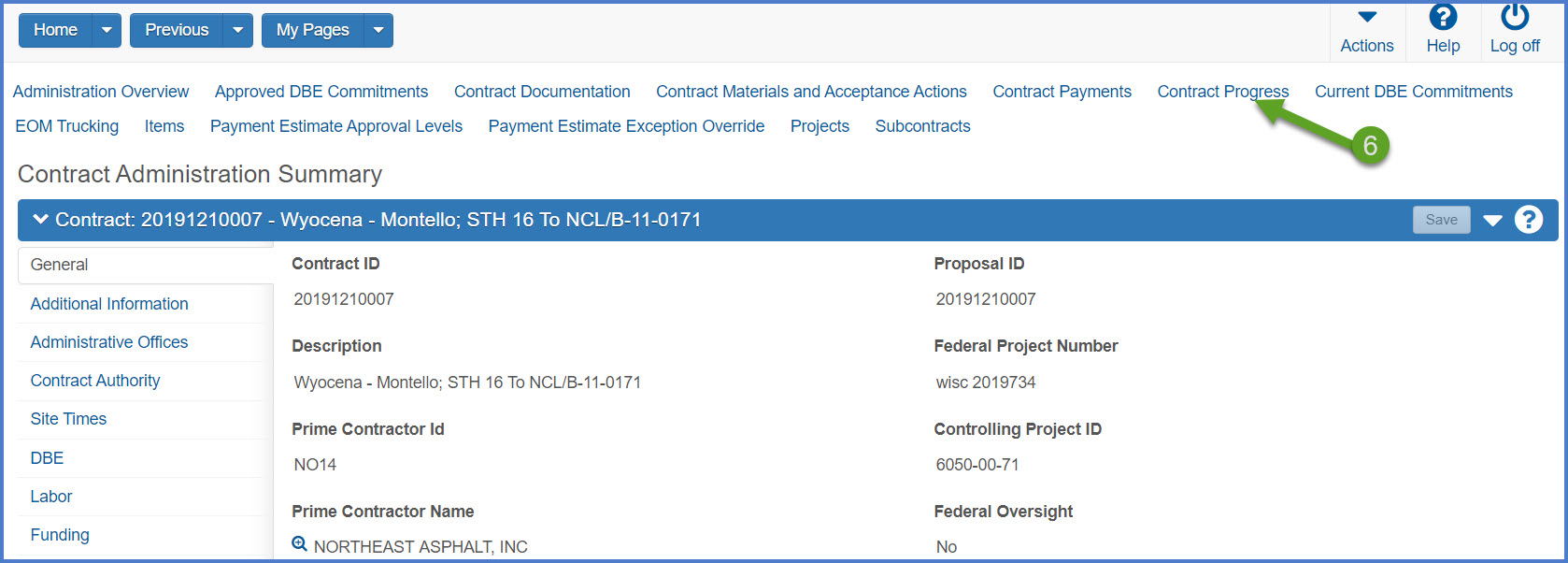
- Select the Contract Progress quick link.
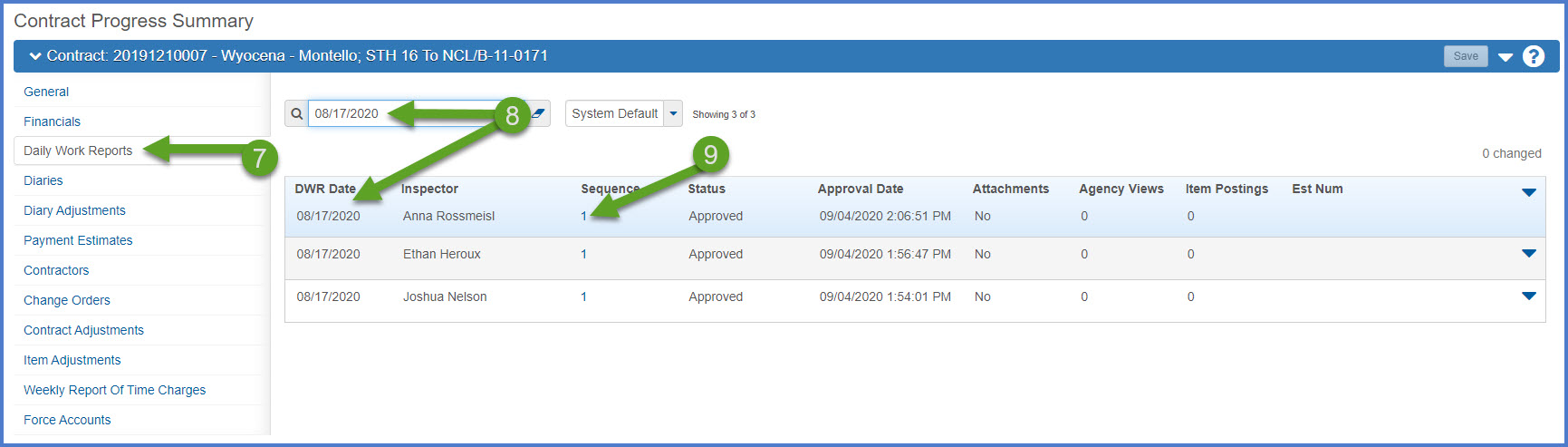
- On the Contract Progress Overview component, select the Daily Work Reports tab.
- Select an existing DWR under Contract Progress Summary | Daily Work Reports tab by clicking on the "Show first 10" hyperlink or by searching for the DWR Date or Inspector in the search box.
- To open the DWR, select the Sequence number hyperlink.
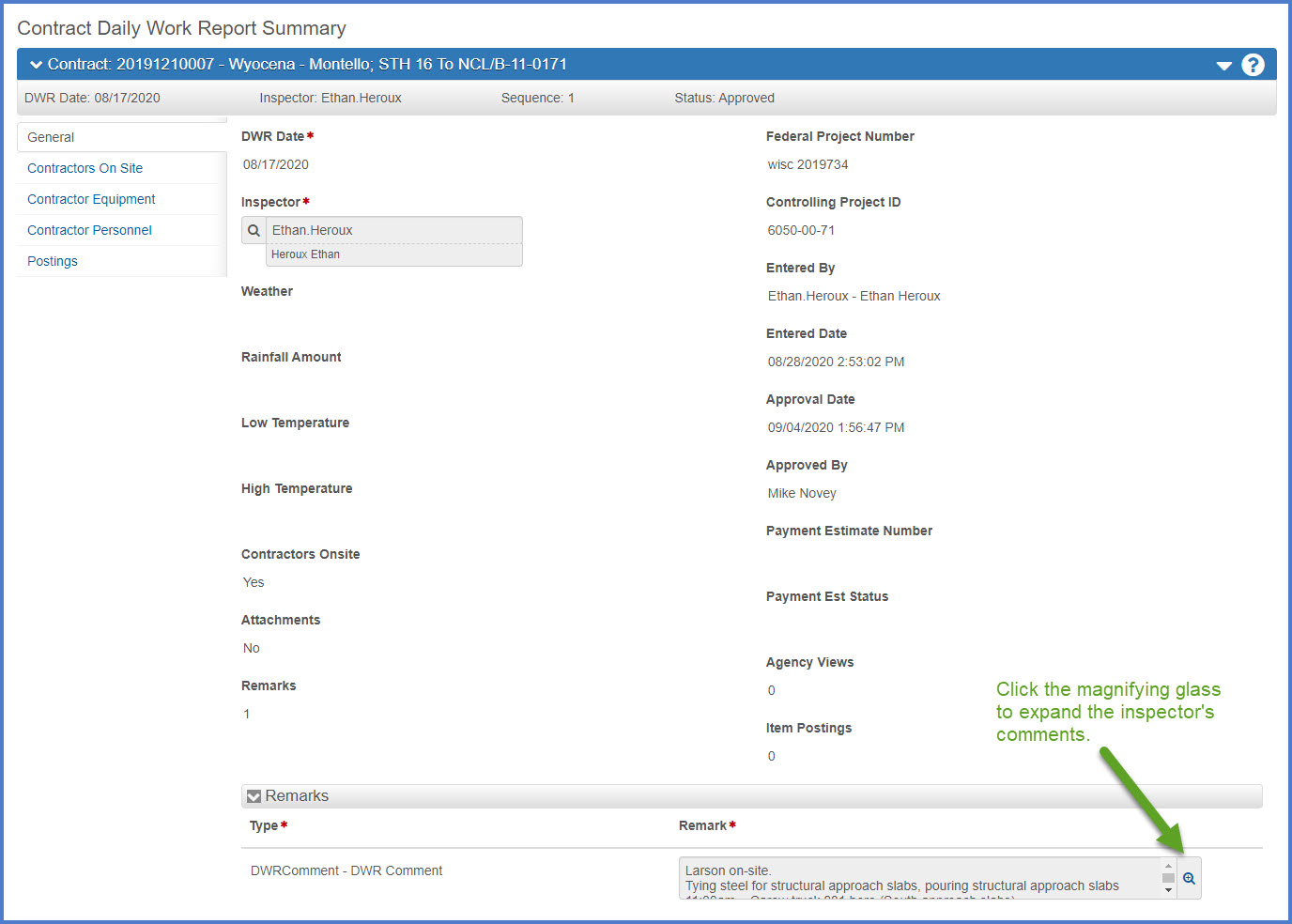
General tab
This tab displays general information about the DWR including the DWR date, inspector's name, weather information and the inspector's comments.
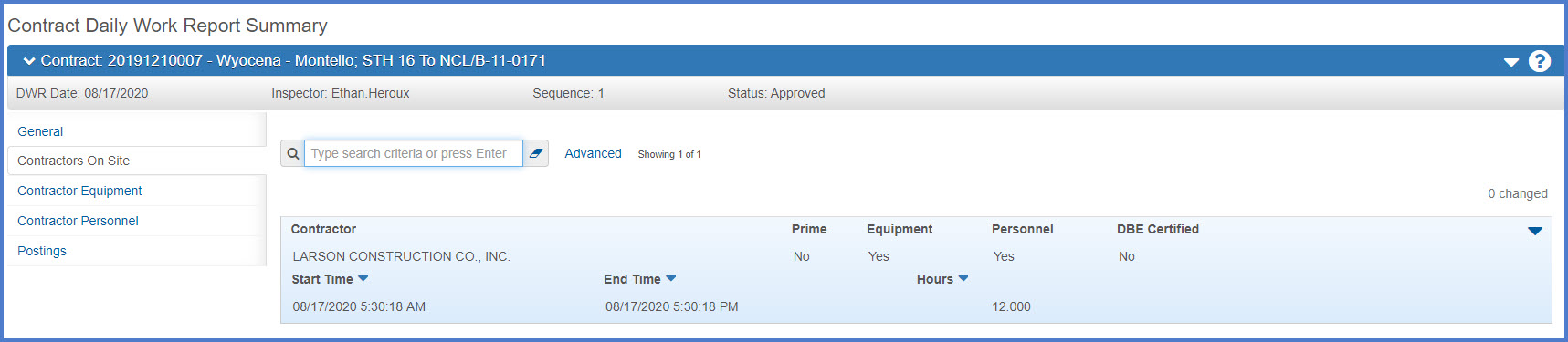
Contractors On Site tab
Inspectors record if the contractors or any subcontractors were on the job site on the DWR date. If this is a DWR with item postings, the subcontractors and the prime contractor associated to the items to be paid MUST be selected. Zero (0) hours is noted if they are not working on site on the date of this DWR.
Info:
Field staff add their subcontractors who worked for the time period of a "Posting Only" DWR on this tab. The list of subcontractors is tied to the Subcontract Overview component where either the Project Engineer or the Compliance Specialist add them. Sometimes subcontractors are not used on the contract and later need to be deleted from the contract. If the subcontractor is tied to an approved DWR and a payment estimate, they cannot be deleted from the Subcontract Overview component.
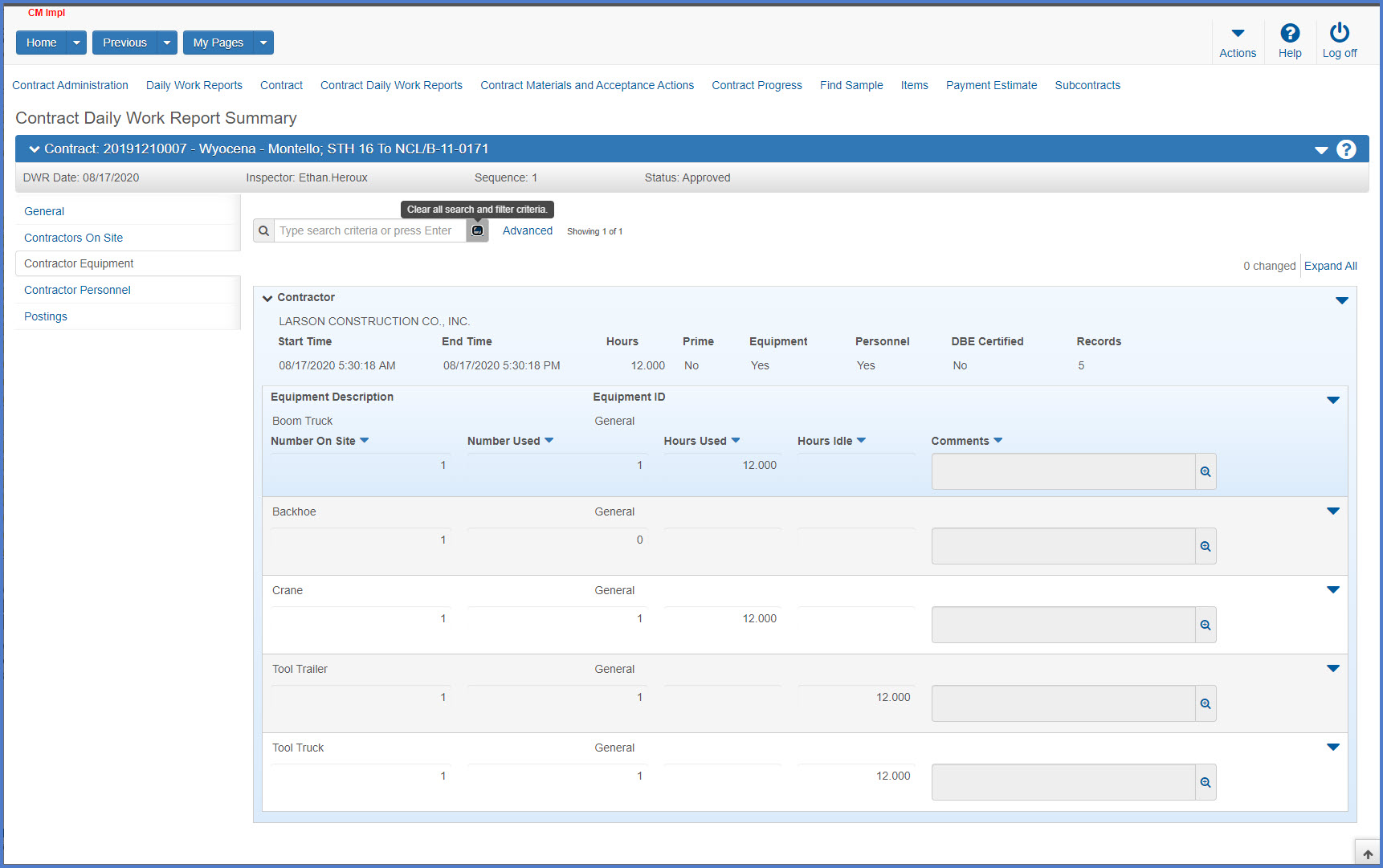
Contractor Equipment tab
This tab displays the type of equipment, number used, hours used, hours idle and comments for the DWR date.
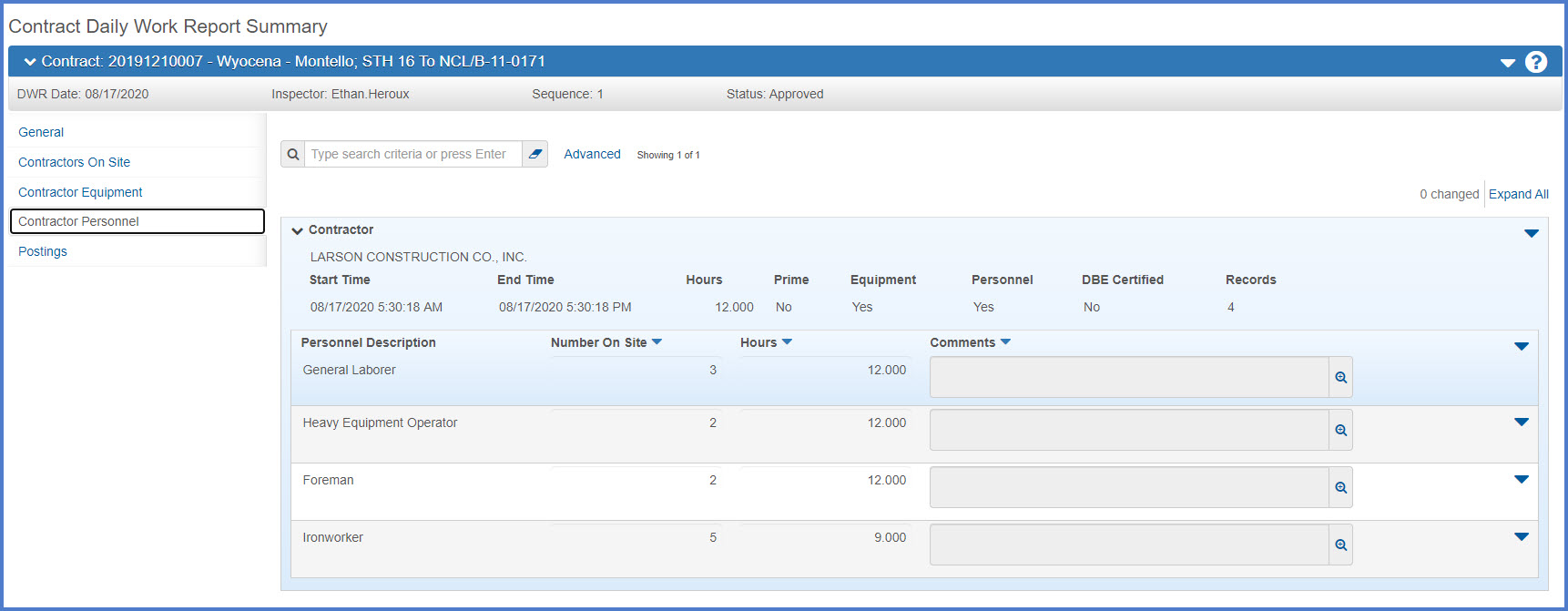
Contractor Personnel tab
This tab displays the personnel on the job site for the DWR date and includes worker job classification / decription, number on site, hours on site and comments.
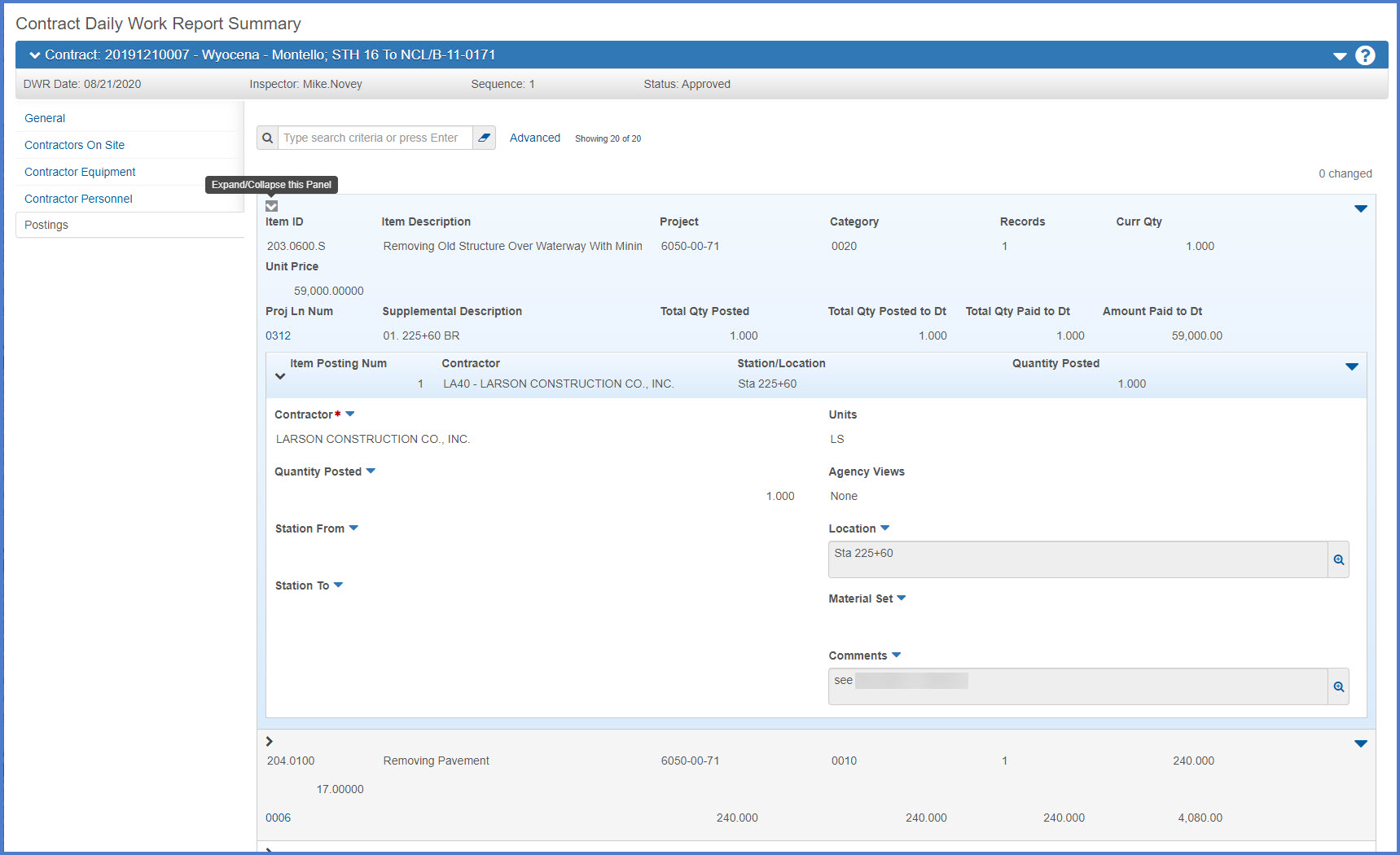
Item Postings
This tab displays item postings and includes the quantity posted, stationing or location and comments.
How to print a single Daily Work Report
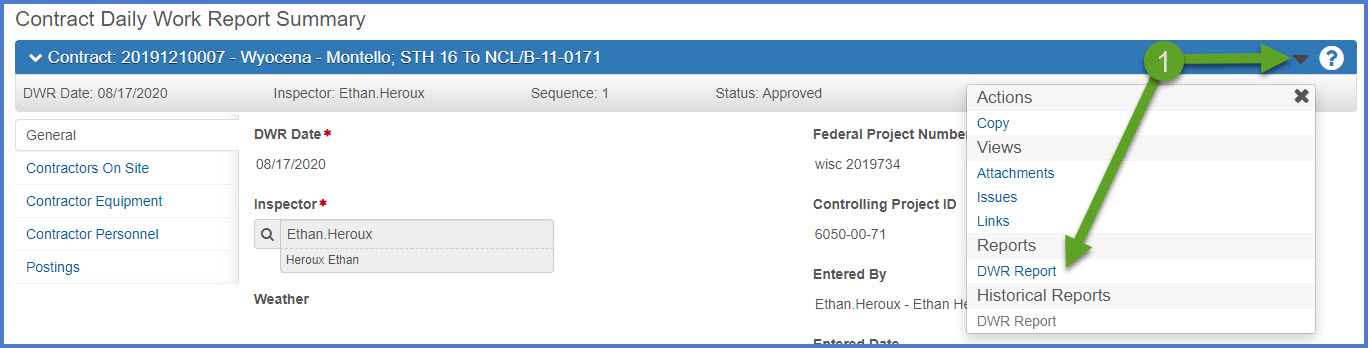
- Within the Daily Work Report, select the Component Actions Menu | Reports DWR Report.
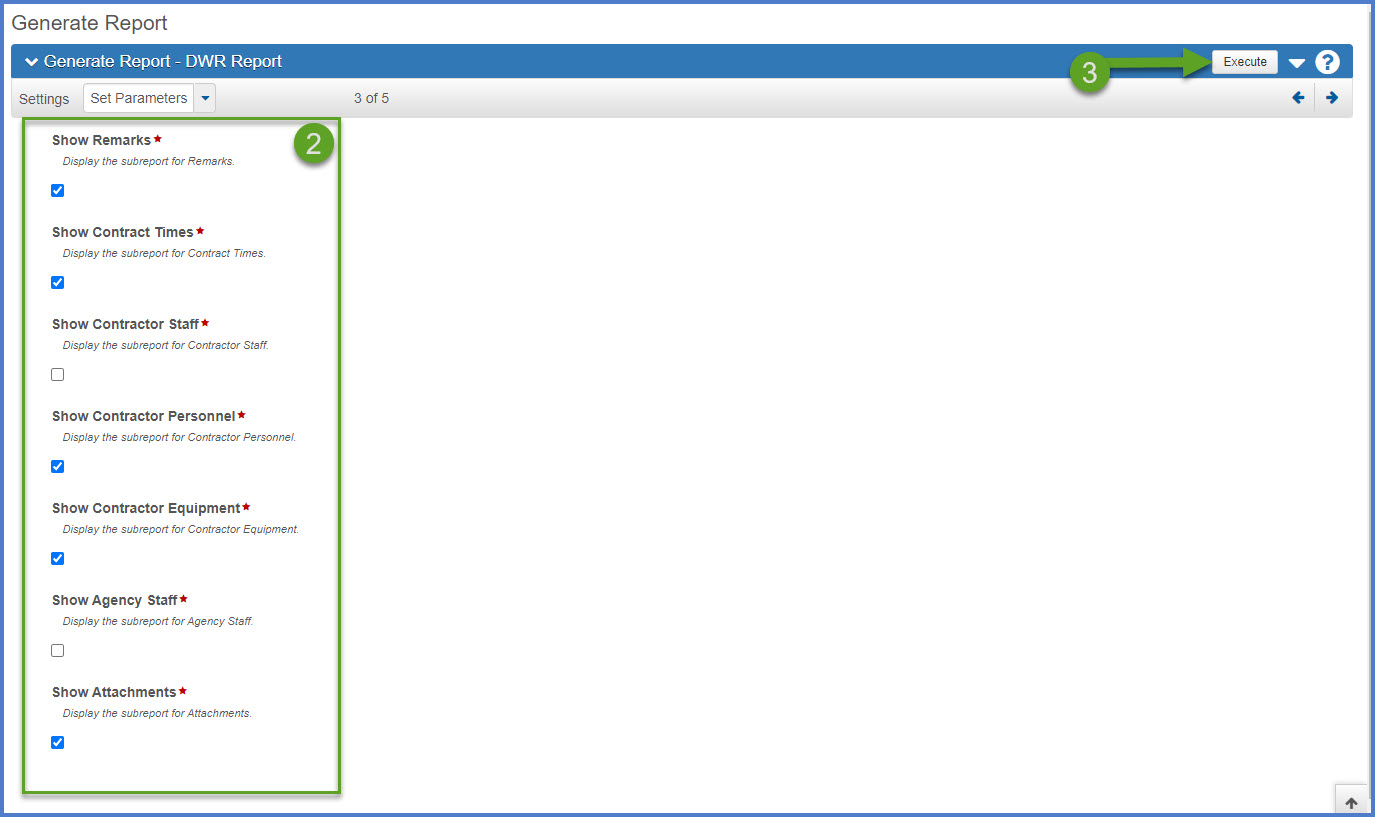
- On the Generate Report - DWR Report Set Parameters component, Show Contractor Staff and Show Agency Staff should not be selected. WisDOT tracks personnel and equipment on DWRs only.
- Click <Execute>.
- The report will be generated and appear in a new browser tab. The report can be viewed, printed or saved in PDF format.
What is the difference between a report and a historical report?
A report can be generated at any time within the application. Some reports have a historical report available at the completion of an approval process. This includes the daily work reports (DWRs), Change Order Report, Contract Project Design Evaluation Report, Contractor Evaluation Report, Items With Unpaid Placed Quantities report, Payment Estimate for Contractor report, and the Payment Estimate Summary By Project Report. For these reports, print this report version until the historical report becomes available.
A historical report is the final report for a specific approval process. This includes daily work reports (DWRs), contract project design evaluations, contractor / subcontractor evaluations, and payment estimates. When the final approval is granted for one of the noted processes, the historical report is generated as a PDF file that is directly attached to the source record (e.g. change order number 0004, payment estimate number 0005, etc.). In the case of DWRs, they are part of an approved payment estimate and the associated DWR Report is created when the final approval is received on the payment estimate. The historical report is the final copy of the report and cannot be edited.
How to print multiple Daily Work Reports for a specific time period
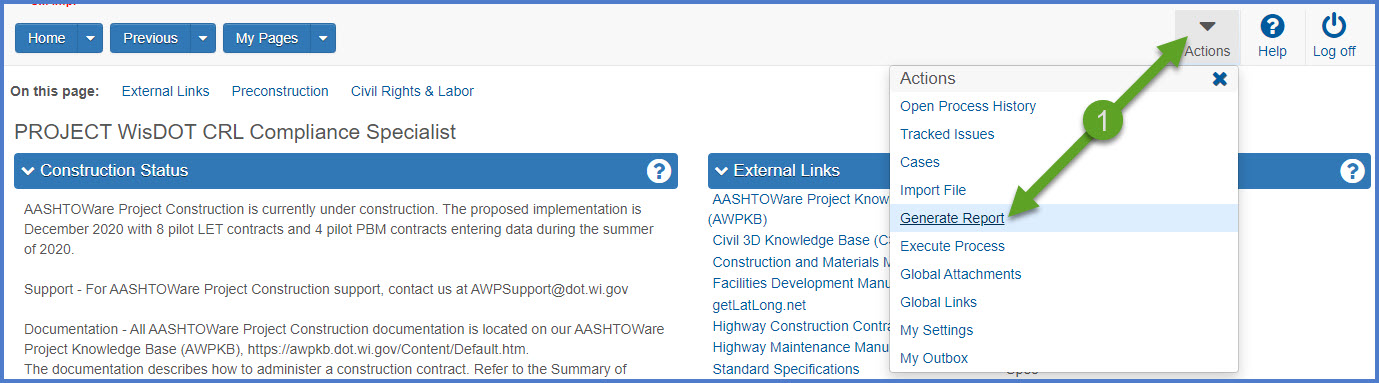
- From any component, select the Global Actions Menu | Generate Report.
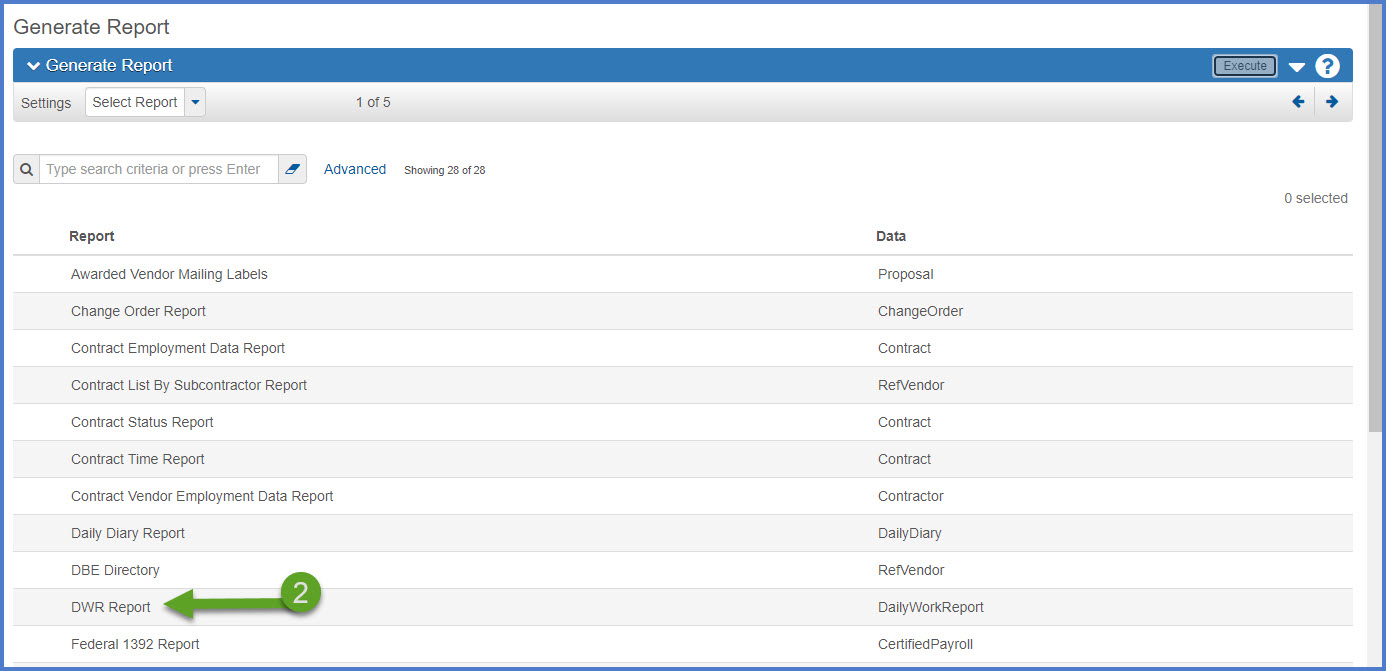
- On the Generate Report component, select the DWR Report.
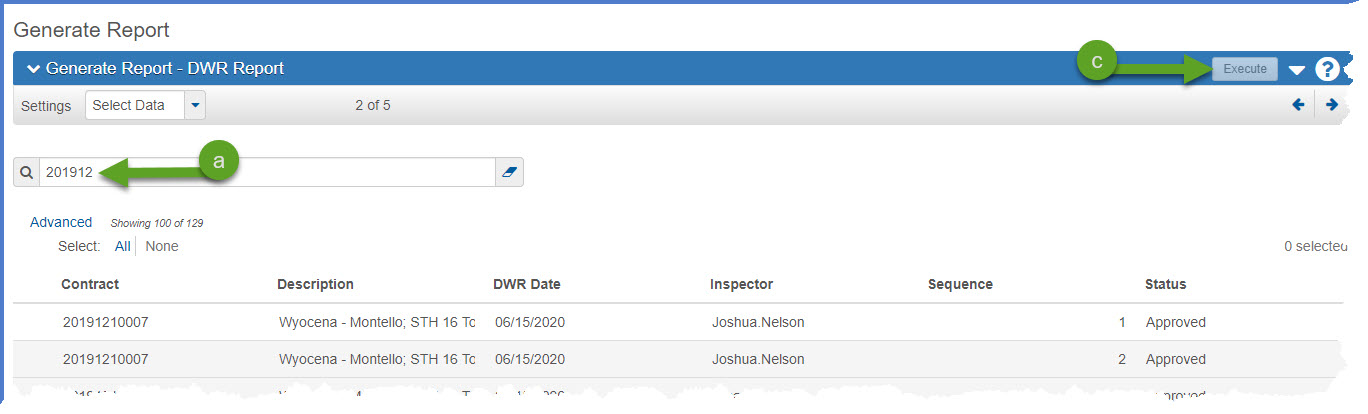
- When the report is selected, the Generate Report - DWR Report | Select Data component will appear.
- Search for the contract ID.
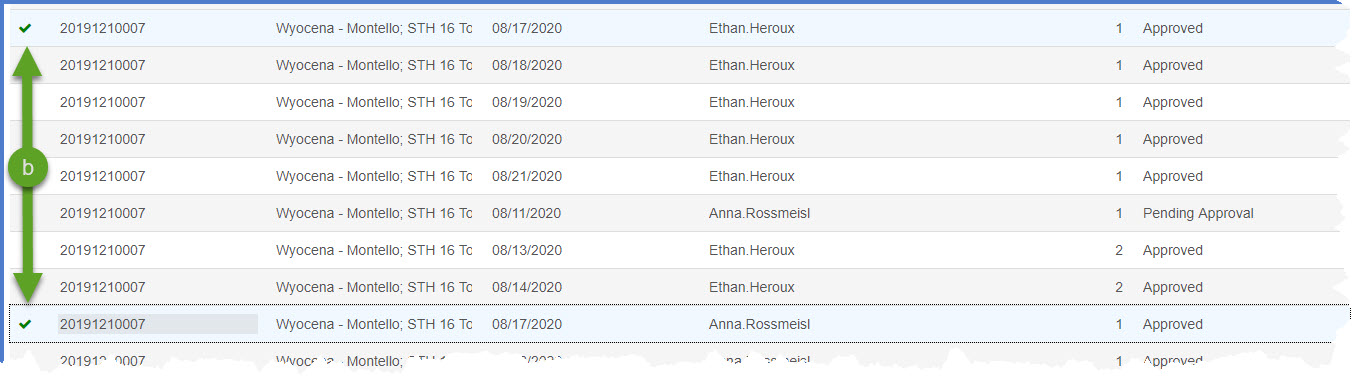
- Select one or more DWR Report Dates to print.
- Click <Execute>.
- The report will be generated and appear in a new browser tab. The report can be viewed, printed or saved in PDF format.
What is the difference between a report and a historical report?
A report can be generated at any time within the application. Some reports have a historical report available at the completion of an approval process. This includes the daily work reports (DWRs), Change Order Report, Contract Project Design Evaluation Report, Contractor Evaluation Report, Items With Unpaid Placed Quantities report, Payment Estimate for Contractor report, and the Payment Estimate Summary By Project Report. For these reports, print this report version until the historical report becomes available.
A historical report is the final report for a specific approval process. This includes daily work reports (DWRs), contract project design evaluations, contractor / subcontractor evaluations, and payment estimates. When the final approval is granted for one of the noted processes, the historical report is generated as a PDF file that is directly attached to the source record (e.g. change order number 0004, payment estimate number 0005, etc.). In the case of DWRs, they are part of an approved payment estimate and the associated DWR Report is created when the final approval is received on the payment estimate. The historical report is the final copy of the report and cannot be edited.