Stockpiles
Last updated: 2026-04-27
A construction stockpile is money advanced to the contractor to purchase and store a material for an item in bulk quantity. These advanced payments are recovered as work on the item is paid for. Multiple stockpiles may be created for the same item or different items on the same contract. Data entry is broken down into these key areas:
 Viewing a stockpile
Complete these steps to view an existing stockpile record.
- Log into AASHTOWare Project.
-
Select the Readonly Construction role (home button action arrow | Contractors OR ReadonlyConstr).
Prime Contractors should select the Contractors role.
WisDOT non-field staff should select the ReadonlyConstr role.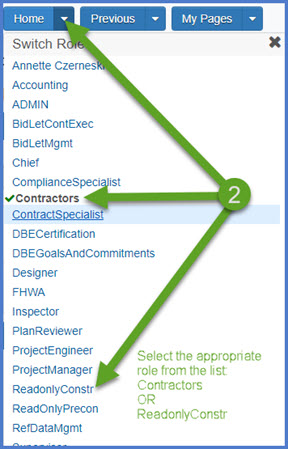
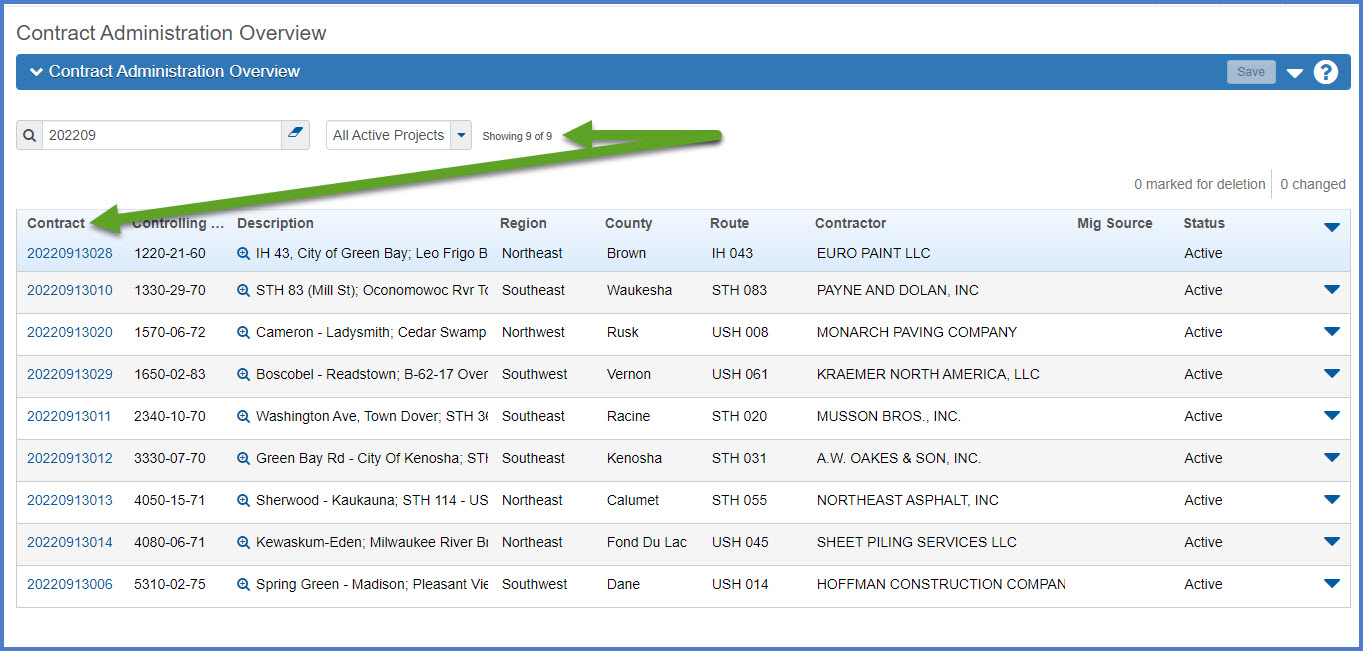
- Select the contract under Contract Administration Overview by searching for the Contract ID, controlling project ID, region, county or contractor in the search box.Tips:
Go to How to Search for the Contract ID by Project ID if only an associated project ID is known. - Click on the contract ID hyperlink for the contract you are working on.
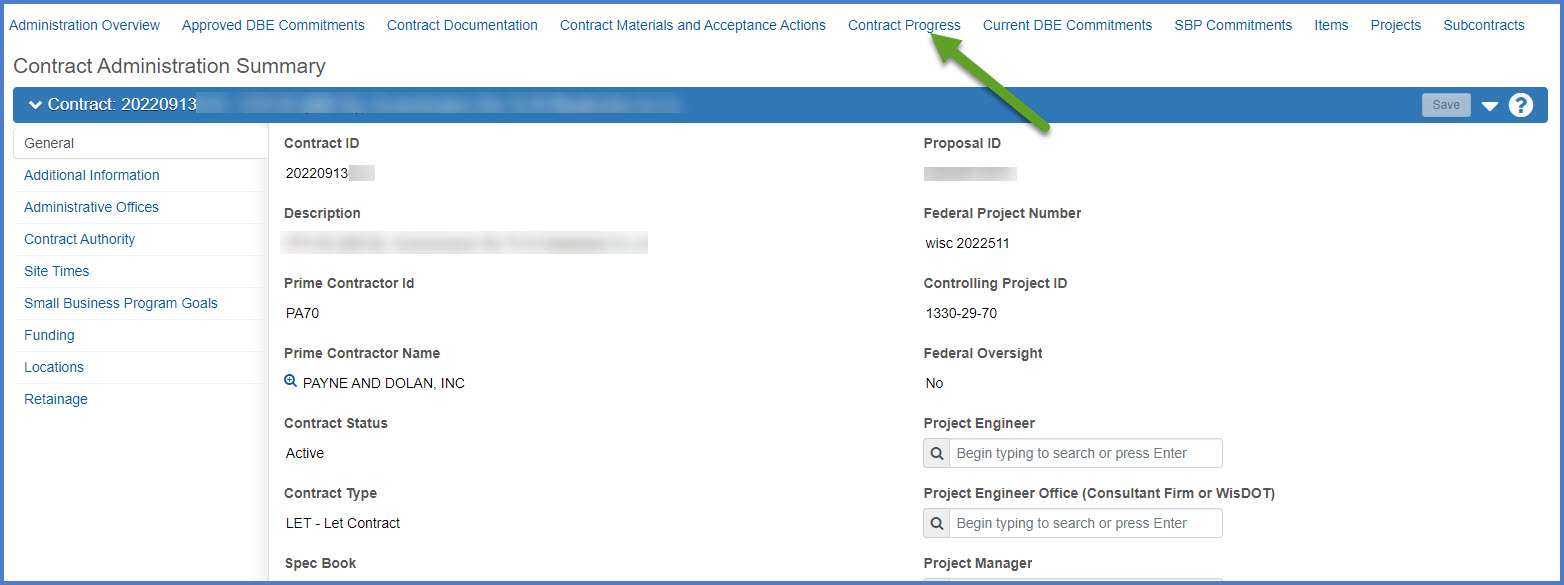
- Click the Contract Progress quick link located at the top of the screen.
- Click the Construction Stockpile quick link at the top of the screen.
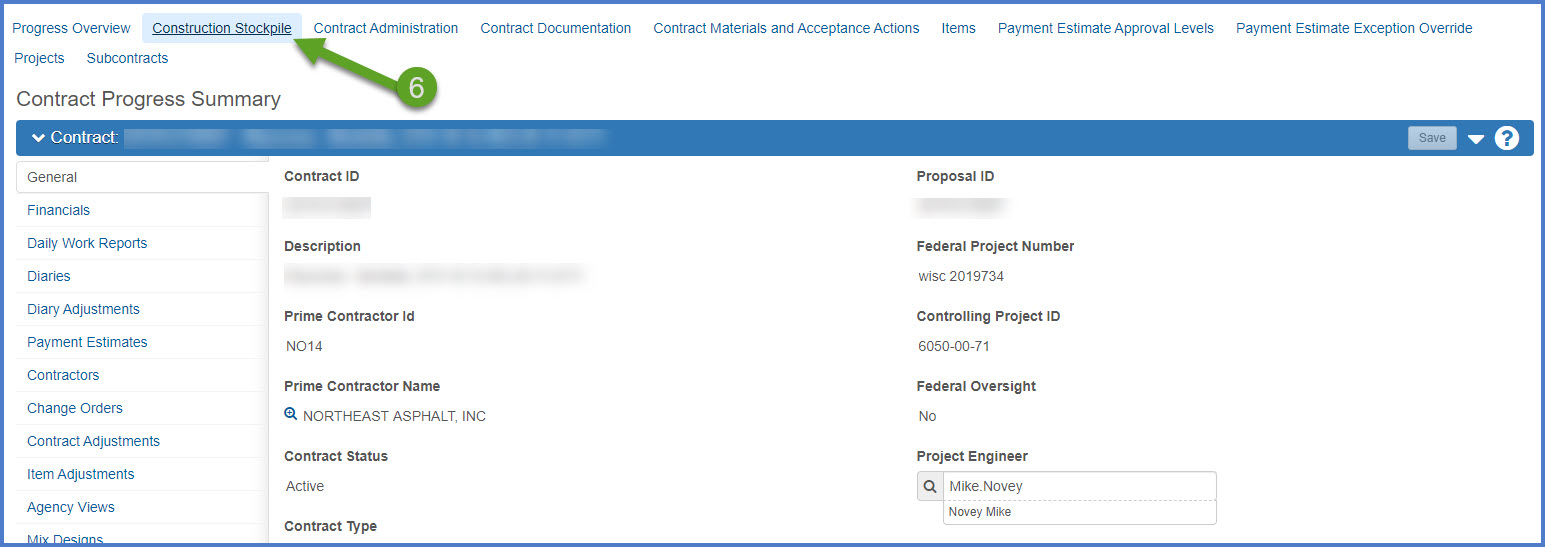
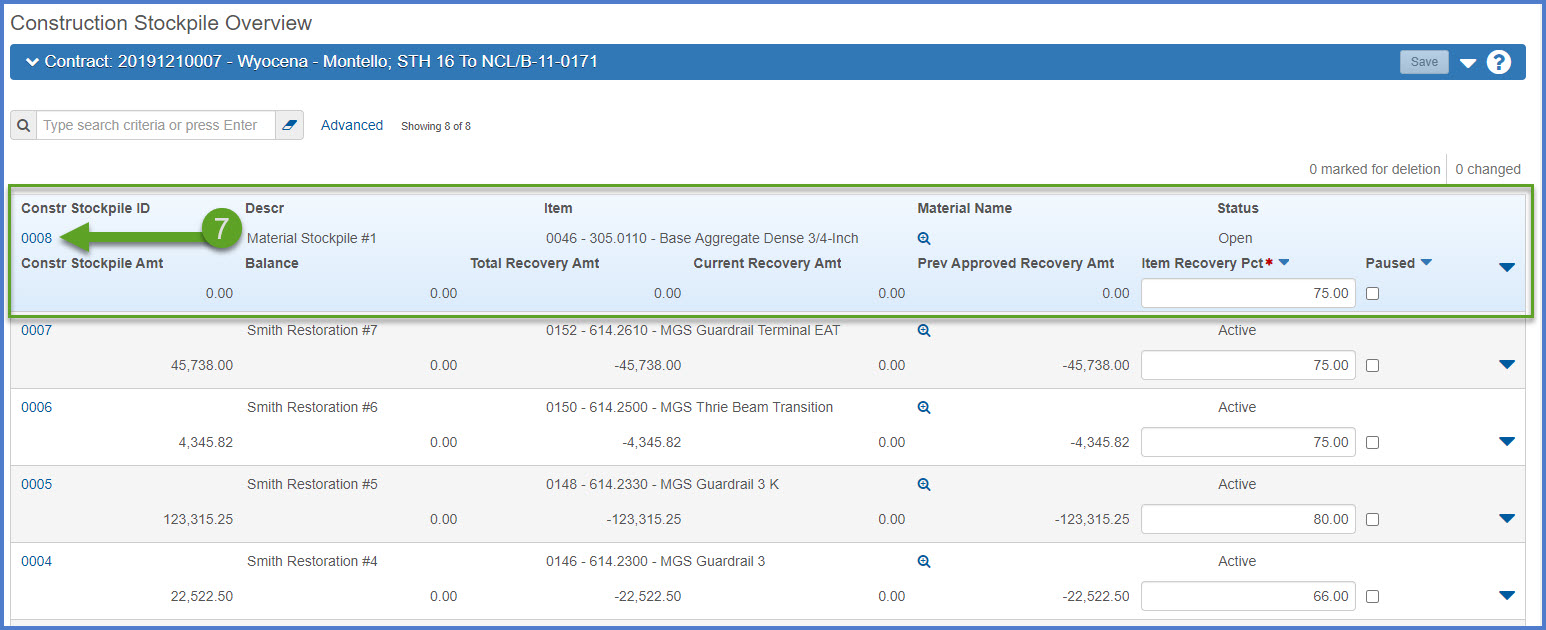
- From the Construction Stockpile Overview component, search for and open the stockpile to be viewed by clicking on the Constr Stockpile ID hyperlink.
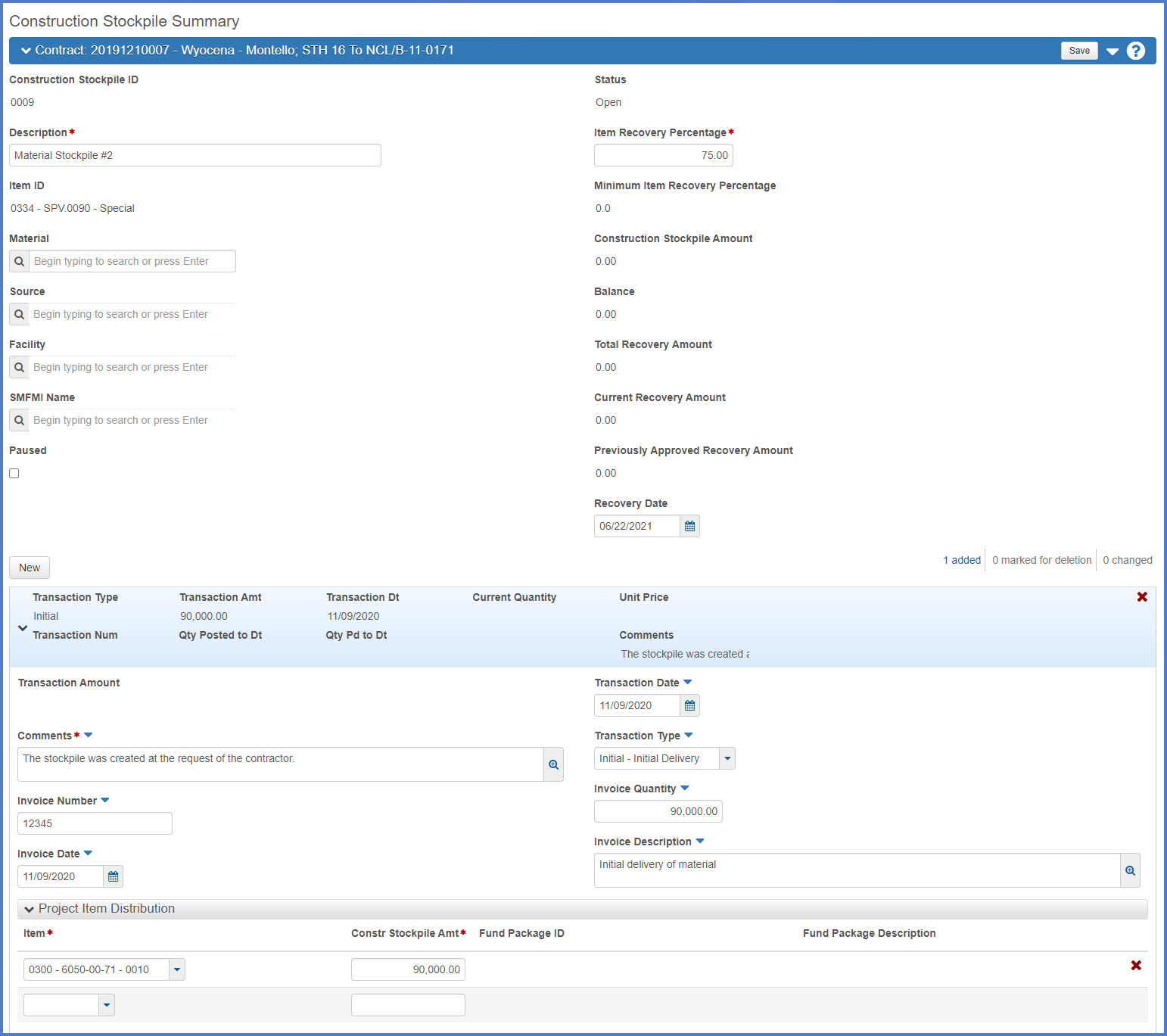
Stockpile fields and descriptions table
| Field | Description |
|---|---|
| Construction Stockpile ID | Unique number assigned to each stockpile for a contract. |
| Description | Description for this stockpile. |
| Item ID | The stockpile item . |
| Material | Not used at this time. |
| Source | Not used at this time. |
| Facility | Not used at this time. |
| SMFMI Name | Not used at this time. |
|
Paused |
Indicates whether the item recovery for the stockpile is paused. The default value is No. To pause item recovery for the stockpile, click to select the checkbox. To resume item recovery, deselect the checkbox. |
| Status | The status of the stockpile, either Open, Active, or Closed. When a stockpile is first created, its status is Open. After a stockpile is processed by a payment estimate, its status becomes Active. A stockpile has a Closed status only when the stockpile is manually closed or when it is automatically closed as a result of agency option settings for semi-final or final estimates. Stockpiles are not automatically closed when the stockpile balance reaches zero. |
| Item Recovery Percentage | The contract item percent complete for which the construction stockpile amount will have been fully recovered. Leave the default of 75% when creating the initial stockpile. |
| Minimum Item Recovery Percentage | If the Minimum Item Recovery Percentage is greater than the Item Recovery Percentage, the Project Engineer should adjust the Item Recovery Percentage to be or equal or greater than the minimum. |
| Construction Stockpile Amount | The total amount of the construction stockpile. |
| Balance | The remaining balance for the construction stockpile. |
| Total Recovery Amount | The total gross stockpile recovery adjustments dollar amount for this item and construction stockpile on all payment estimates. |
| Current Recovery Amount | The current dollar stockpile recovery adjustment dollar amount for this item and construction stockpile on the current payment estimate. |
| Previously Approved Recovery Amount | The previous dollar stockpile recovery adjustment dollar amount for this item and construction stockpile on the last payment estimate. |
| Recovery Start Date | The recovery start date for the stockpile item. |
| Transaction Subsection | |
| Invoice Number | Invoice number for initial or subsequent material deliveries. |
| Invoice Date | Date of the initial delivery or subsequent material deliveries. |
| Transaction Date | Date of the transaction noting an initial delivery, reduction of the stockpile or replenish of the stockpile. |
| Transaction Type | Initial Delivery, Reduction of Stockpile or Replenish Stockpile |
| Invoice Quantity | Quantity of materials deliver or removed from the site. |
| Invoice Description | Description for materials delivery or removal. |
| Project Item Distribution Subsection | |
| Item | The "project item line number, project ID and category ID" combination for the selected stockpile item |
| Construction Stockpile Amount | The stockpile amount being distributed for the selected "project item line number, project ID, and category ID" combination selected.' |
| Fund Package ID | Fund and Fund Package Description will be auto completed upon saving the stockpile project item distribution record(s). |
| Fund Package Description | Fund and Fund Package Description will be auto completed upon saving the stockpile project item distribution record(s). |
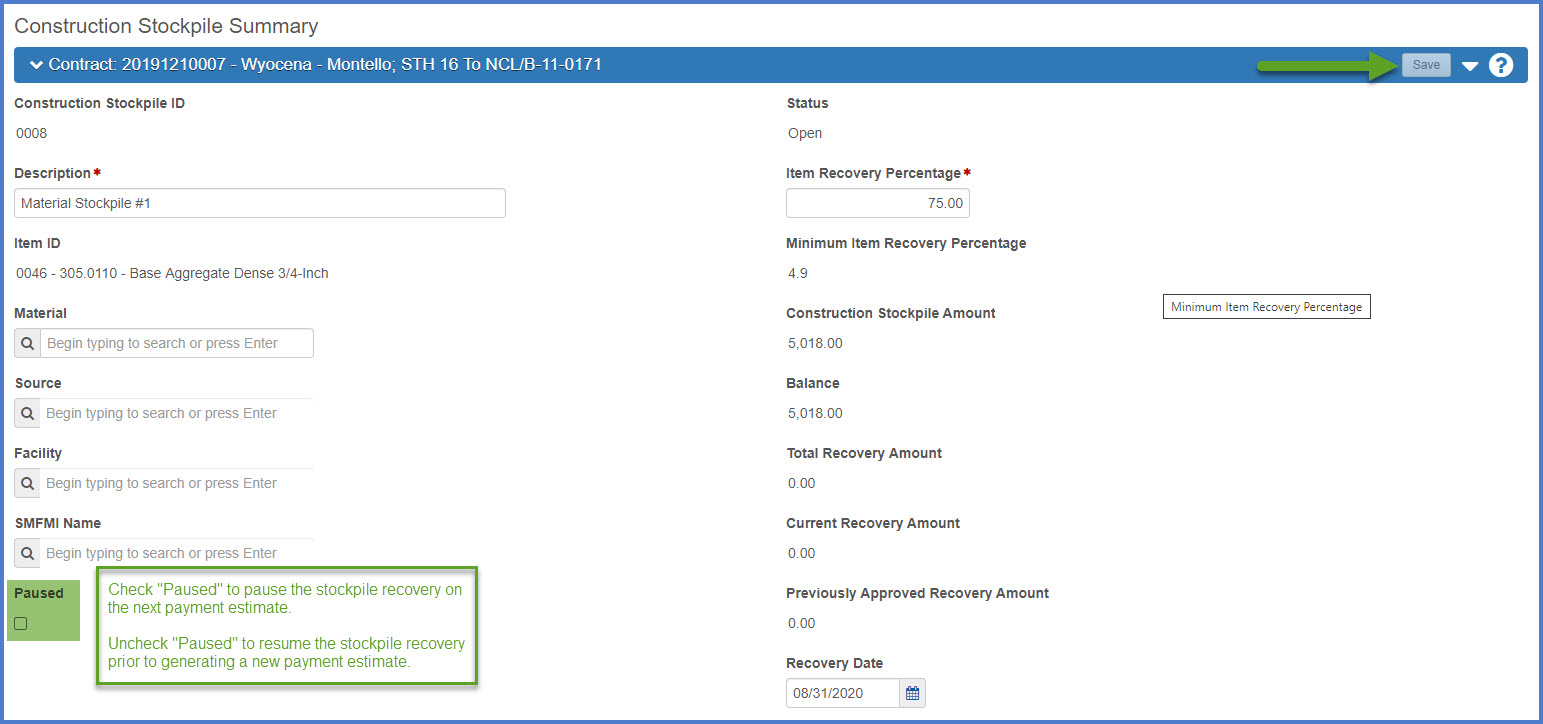
Information about pausing and resuming stockpile recovery
When a new payment estimate is generated, the system will create a stockpile line item adjustment amount for the DWR item posting, unless the Project Engineer paused the stockpile recovery.
When the Project Engineer resumes stockpile recovery, the system will recalculate the stockpile line item adjustment amount with an updated recovery rate when a new payment estimate is generated.
Info: When a stockpile is "paused", the system will not process any stockpile recovery item adjustments from any associated DWR item postings. When the stockpile is "resumed", the system will adjust the recovery adjustment amounts to take into account the missed postings and recover at a slightly higher rate to make up for this. It will not use the postings that were bypassed, but it will continue to do recovery at a rate to meet the Recovery Percentage.
Information about closing a stockpile
To close an active stockpile that has a zero balance, select the stockpile Row Actions Menu | Close Stockpile. The system changes the stockpile Status to Closed. Closed stockpiles cannot be deleted or replenished with additional transactions.
Printing the Stockpile Summary Report
- From the Contract Progress Summary component, click the Construction Stockpile quick link at the top of the screen.
- From the Construction Stockpile Overview component, search for and open the stockpile to be maintained by clicking on the Constr Stockpile ID hyperlink.
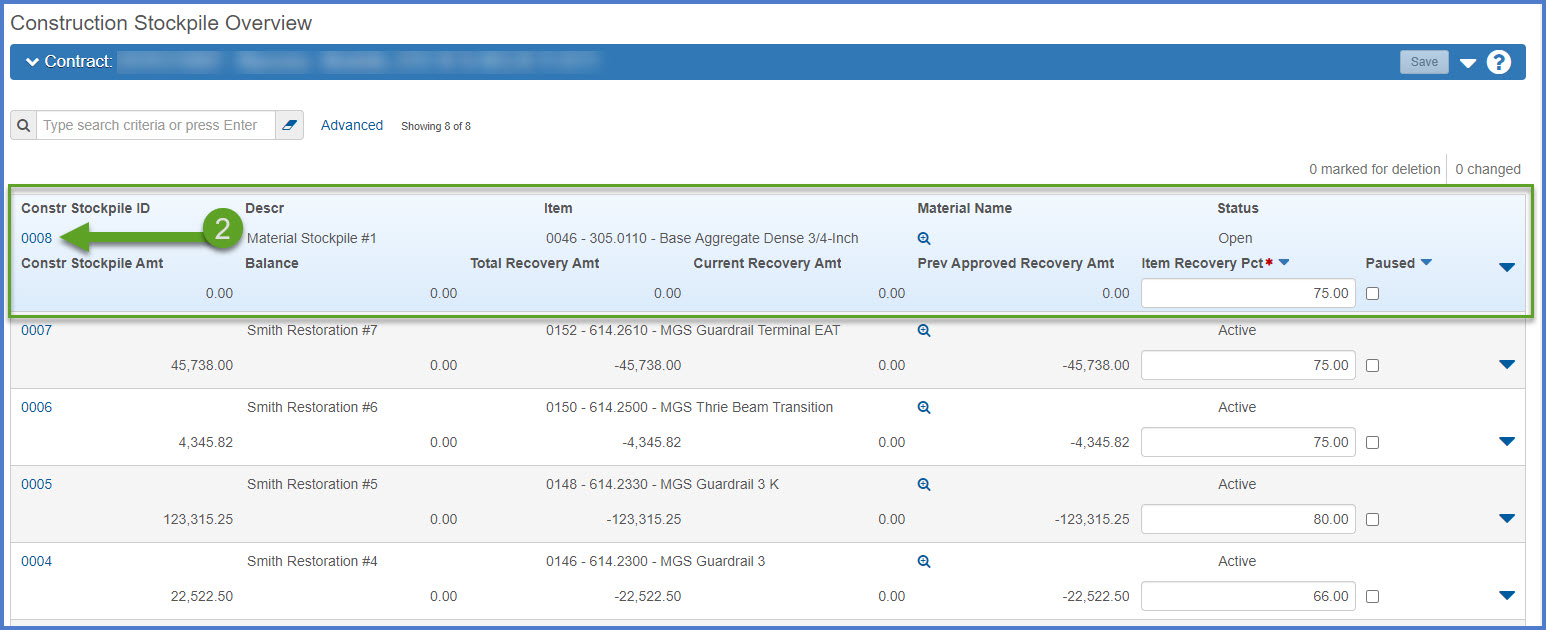
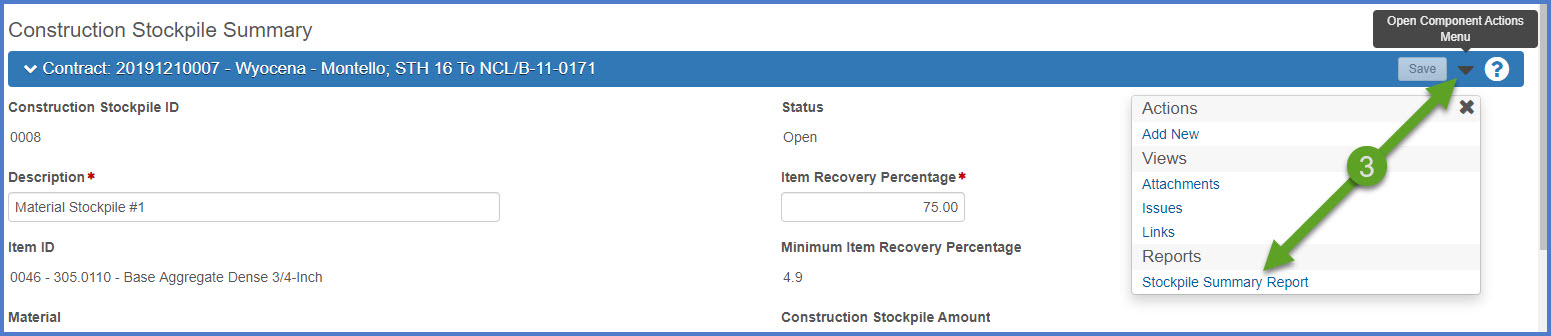
- On the Construction Stockpile Summary component, open the Component Actions Menu | Reports | Stockpile Summary Report.
- On the Generate Report tab, click <Execute>.

- The report will open in a new browser window. The report can be viewed, printed or saved in PDF format.