Items
Last updated: 2026-02-04
This section describes the process to review individual item entries during or at the completion of contract work.
 To view a contract item
- Log into AASHTOWare Project.
- Select the appropriate role (click the Expand Home action arrow | role).
Prime Contractors should select the Contractors role.
WisDOT non-field staff should select the ReadonlyConstr role.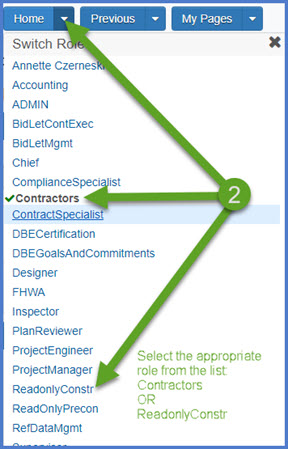
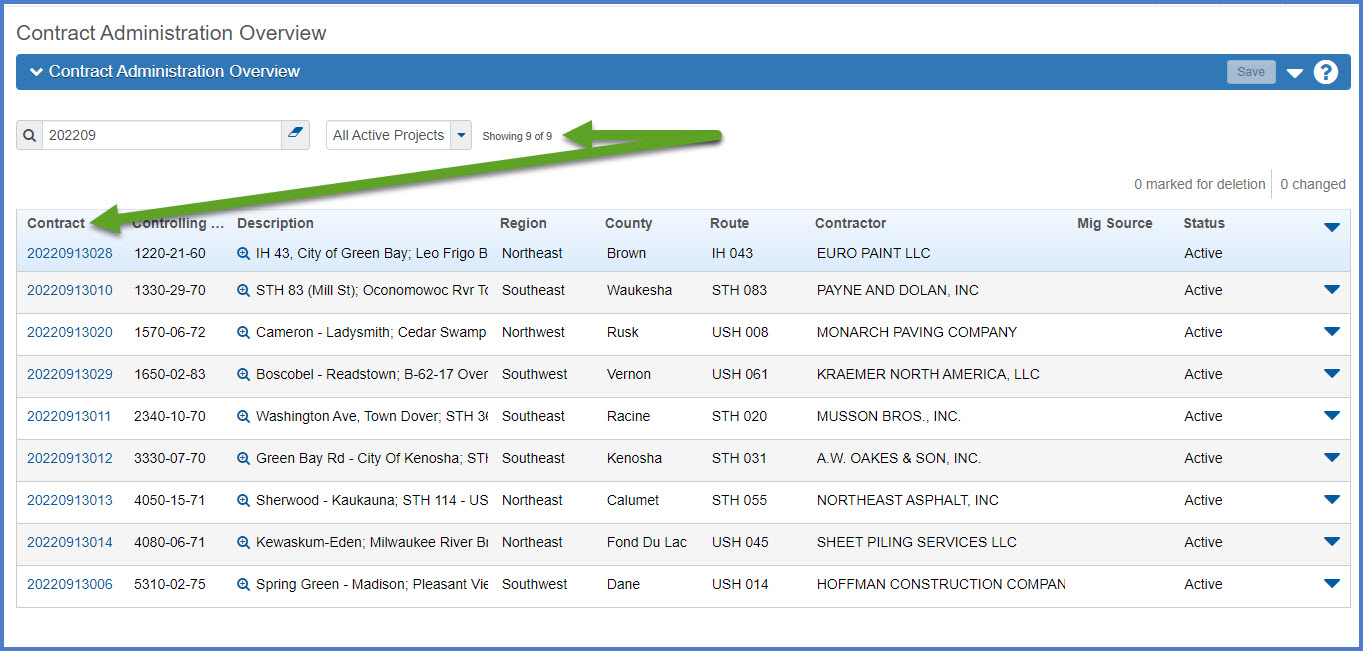
- Select the contract under Contract Administration Overview by clicking on the "Show first 10" hyperlink, by clicking enter, or by searching for the Contract ID or Contract Description in the search box.
Tip: Because the Controlling Project ID field is not a default search field, field staff will need to set a filter to search for their contract using this field. See Searching, Sorting and Filtering Lists for more details. Go to How to Search for the Contract ID by Project ID if only an associated project ID is known.
- Click on the contract ID hyperlink for the contract you are working on.
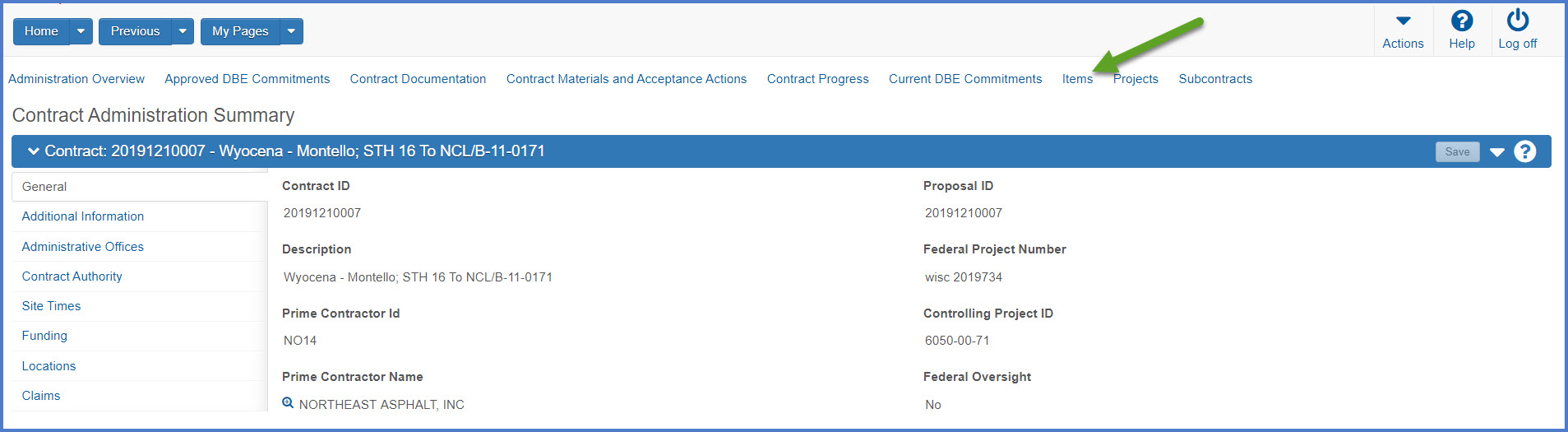
- Click the Items quick link located at the top of the screen.
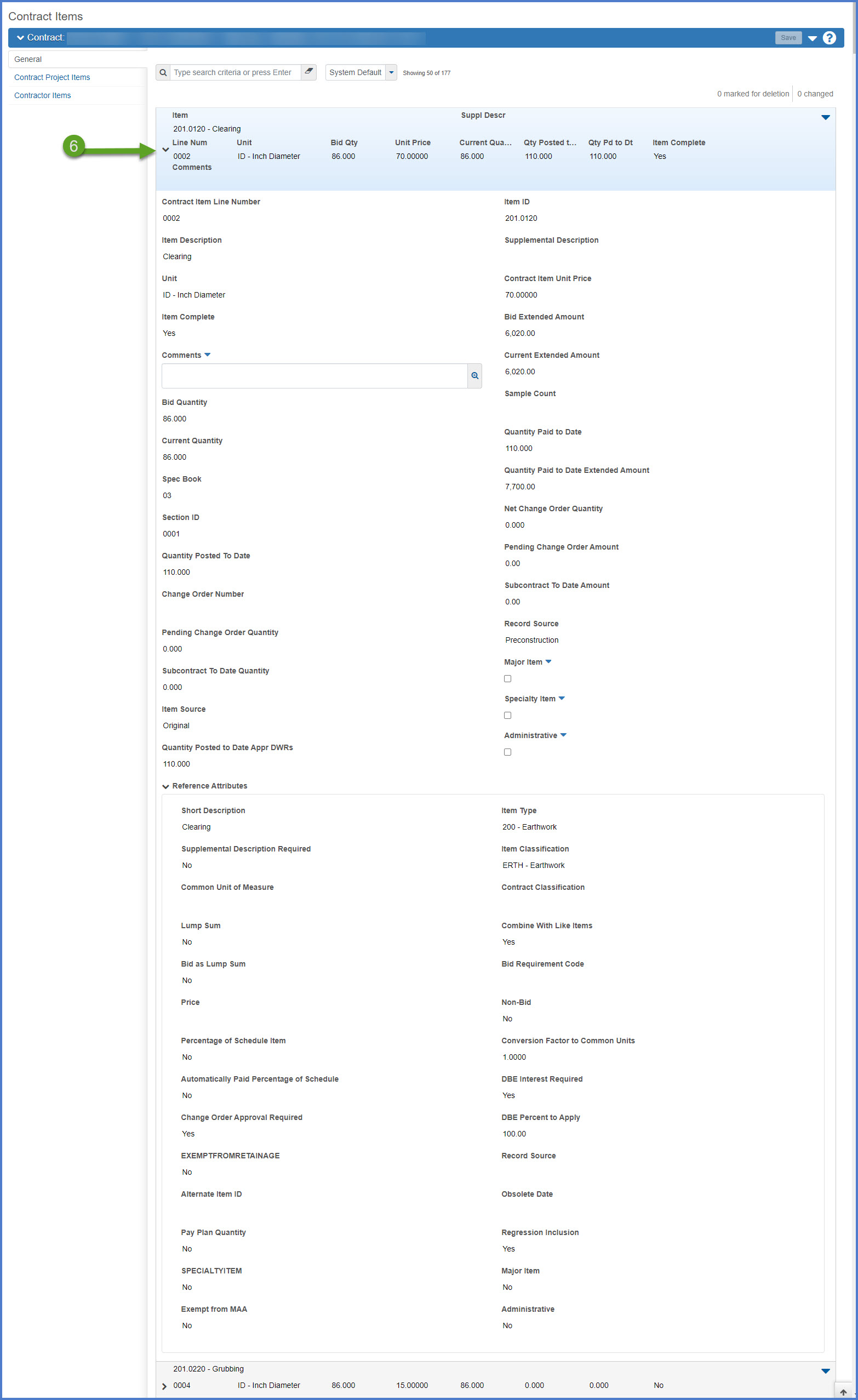
- On the General Tab (Contract Items) tab, search for, select, and expand an item to see the item details including bid and current quantity, quantity posted to date, contract item unit price, bid and current extended amounts, quantity paid to date and item comments. If more item detail is required, complete the steps below to print the Item History To Date Report or the Item Posting by Item report.
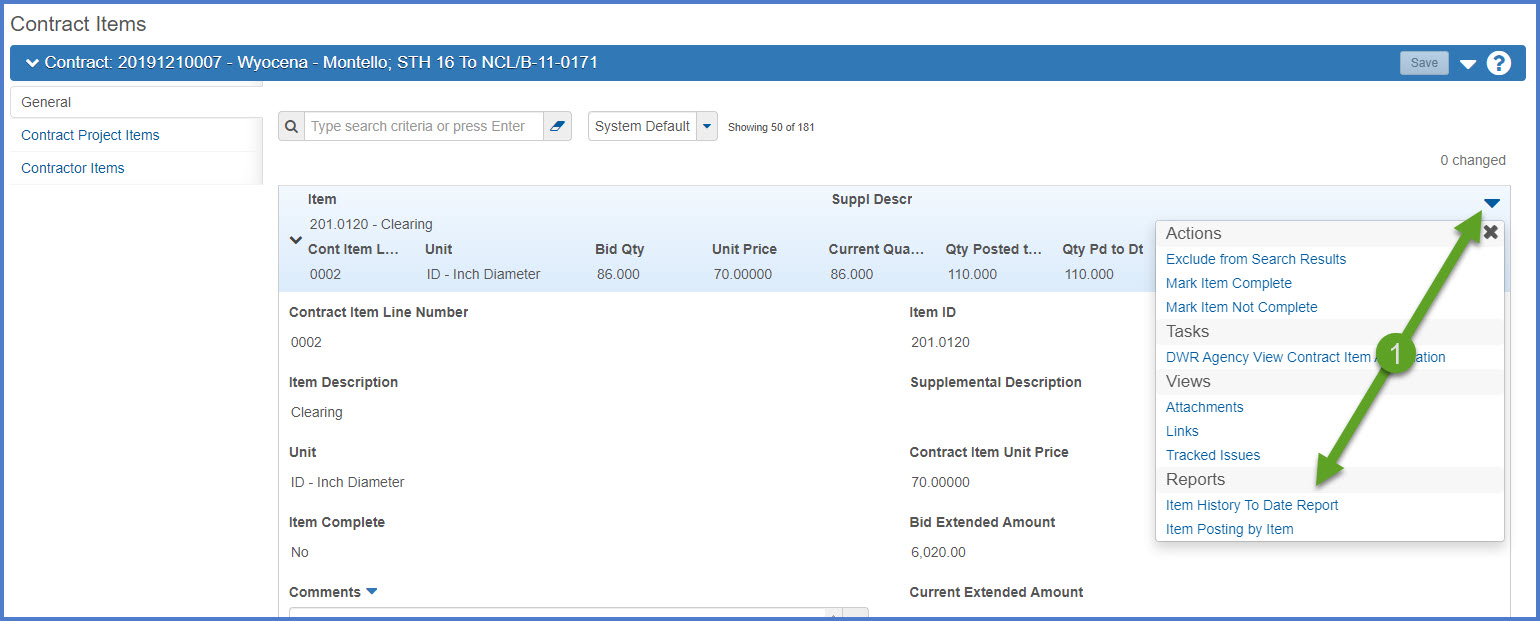
Item History To Date Report for a single item
- From the selected item row, select the Row Actions Menu | Reports | Item History To Date Report.
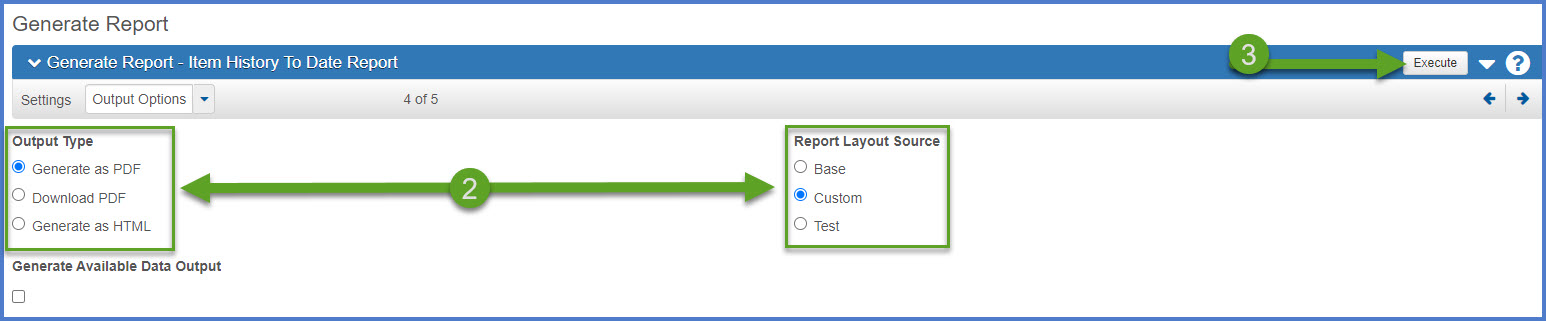
- On the Generate Report component, leave the defaults.
- Output Type = Generate as PDF
- Report Layout Source = Custom to use the WisDOT custom report template.
- Click <Execute> to generate the report.
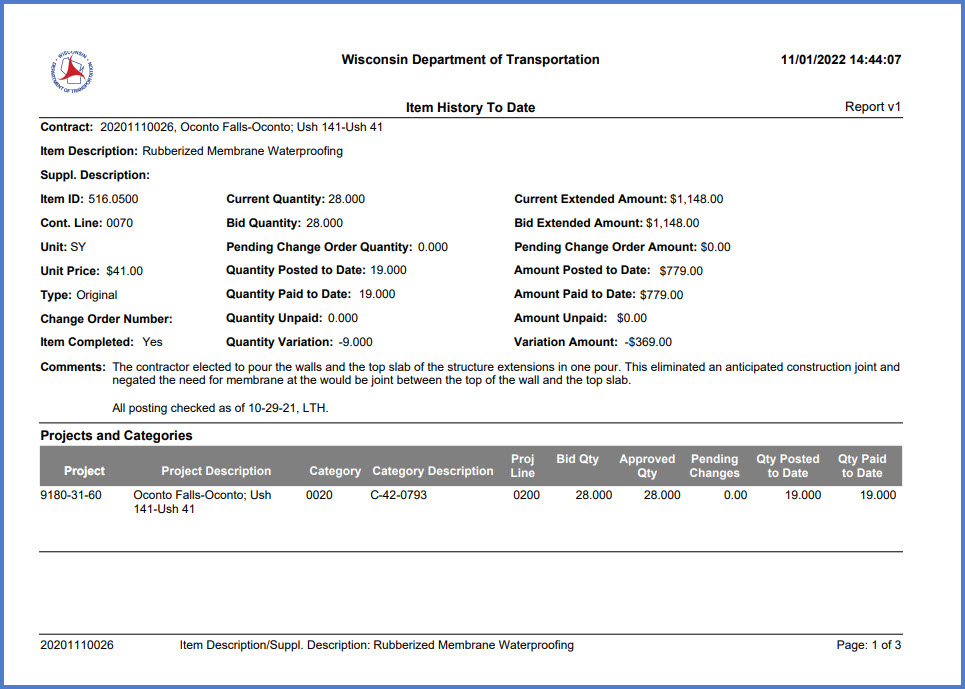
- The report will open in a new browser tab. Print or save the report.
Item History to Date Report for multiple items
- From any component, select Open Global Actions Menu at the top of the screen.
- Select Generate Report.
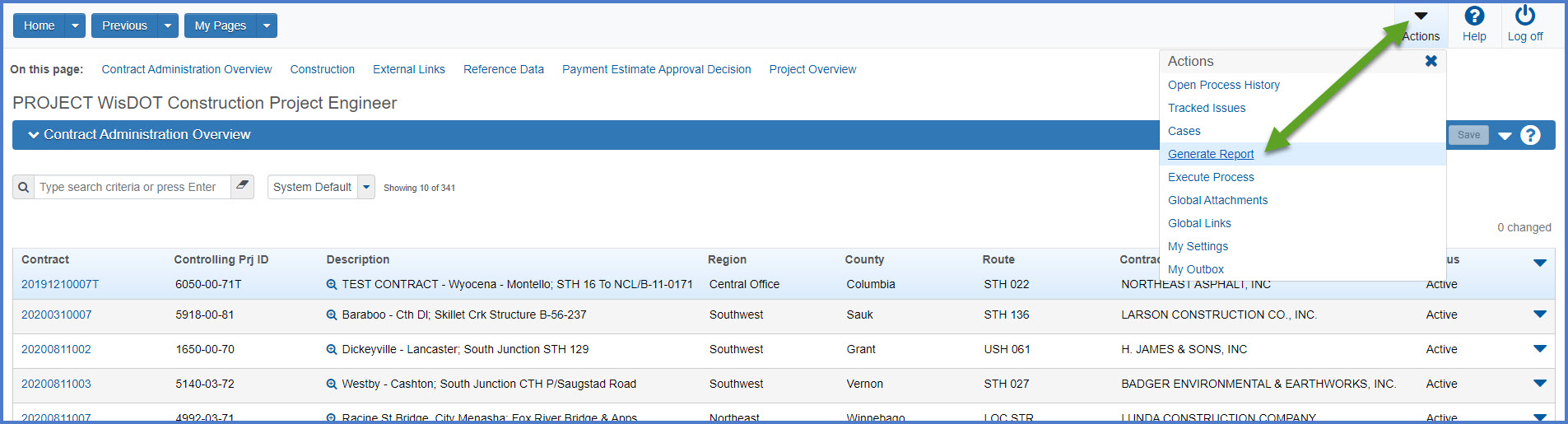
- Search for and select the Item History to Date Report.
- The Generate Report - Item History to Date Report | Select Data component will appear. Search for the contract ID.
- Select "All" to select all the contract items.
- Click <Execute> to generate the report.
- The report will open in a new browser tab. Print or save the report.
Requirement: Due to a AASHTOWare Project 4.4 system issue, staff are required to complete one additional step to successfully print all contract items.
**Deselect and reselect one of the contract items.**
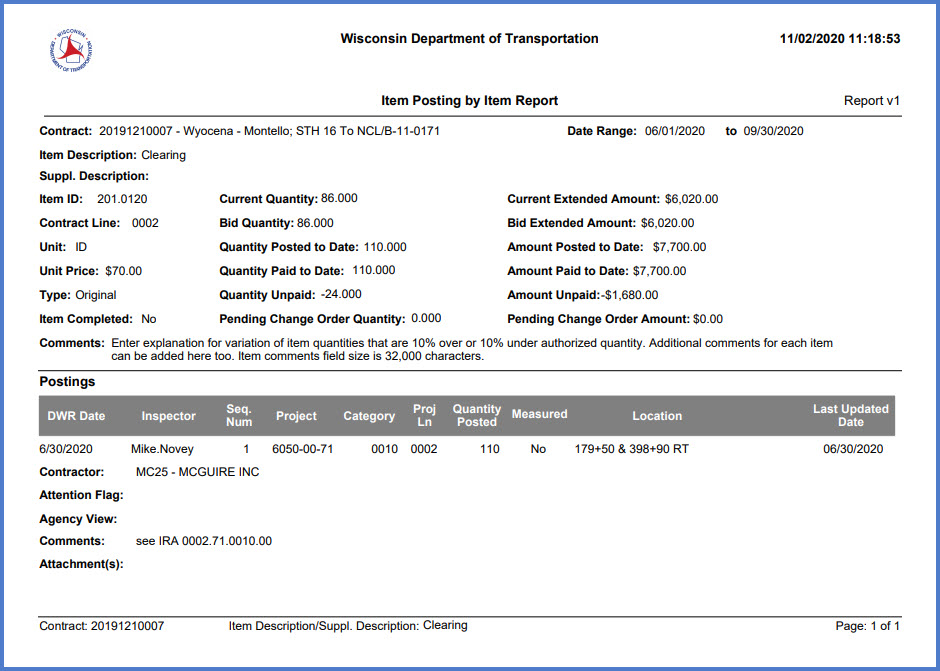
Item Posting by Item report for a single item
- From the selected item row, select the Row Actions Menu | Reports | Item Posting by Item report.
- Select the date range for the item posting report by selecting a start and end date. Click on the "next" arrow or the "Output Options" from the Settings drop down list.
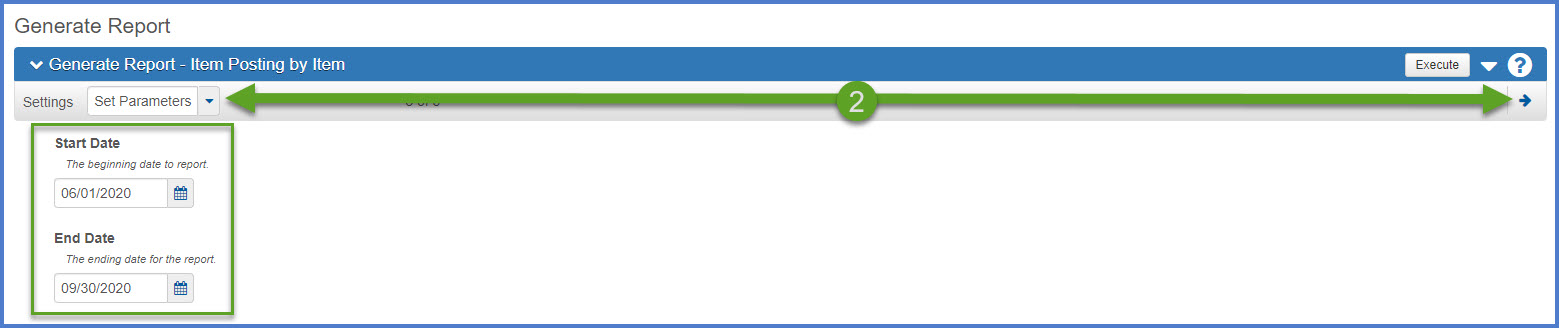
- On the Generate Report component, leave the defaults.
- Output Type = Generate as PDF
- Report Layout Source = Custom to use the WisDOT custom report template.
- Click <Execute> to generate the report.
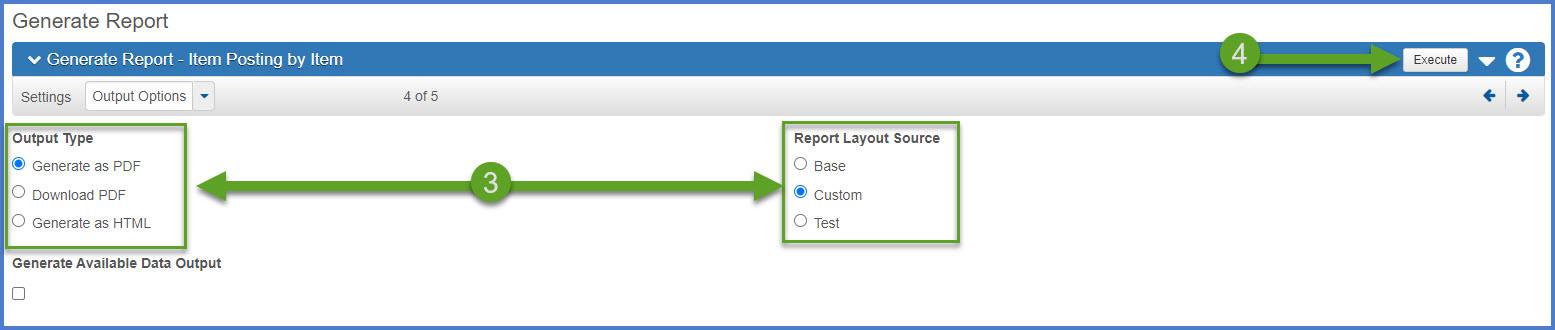
- The report will open in a new browser tab. Print or save the report.