Construction start dates (after activation)
Last updated: 2026-04-27
Roles:
- Contract Specialist, Compliance Specialist, Project Engineer = modify access
- All other construction roles = read only access
The Contract Specialist and Project Engineer enter the dates noted below. Once entered, the Contract Status Dates agency view must be refreshed before after activating the contract.
- Refer to the ECIP / WPDES Agency View table and the Contract Status Dates Agency View table for a list of all the fields, field definitions, the role responsible for data entry, or if this field is auto populated.
- Click on the thumbnail images below to expand and view the content.
 ECIP / WPDES agency view (AV) - Contract Specialist
The WPDES General Permit section of this agency view is used to record the Wisconsin Pollutant Discharge System (WPDES) DNR Permit. The Contract Specialist enters the Permit Required and Permit Coverage Start Date at the beginning of the contract.
- On the Contract Administration Summary component, expand the Components Action Menu | Views | ECIP / WPDES.
- Select "Yes" for the Permit Required field.
- Work with the Project Manager to enter the WPDES General Permit Permit Coverage Start Date. This date will appear on the Contract Status Dates Agency View.
- Click <Save>.
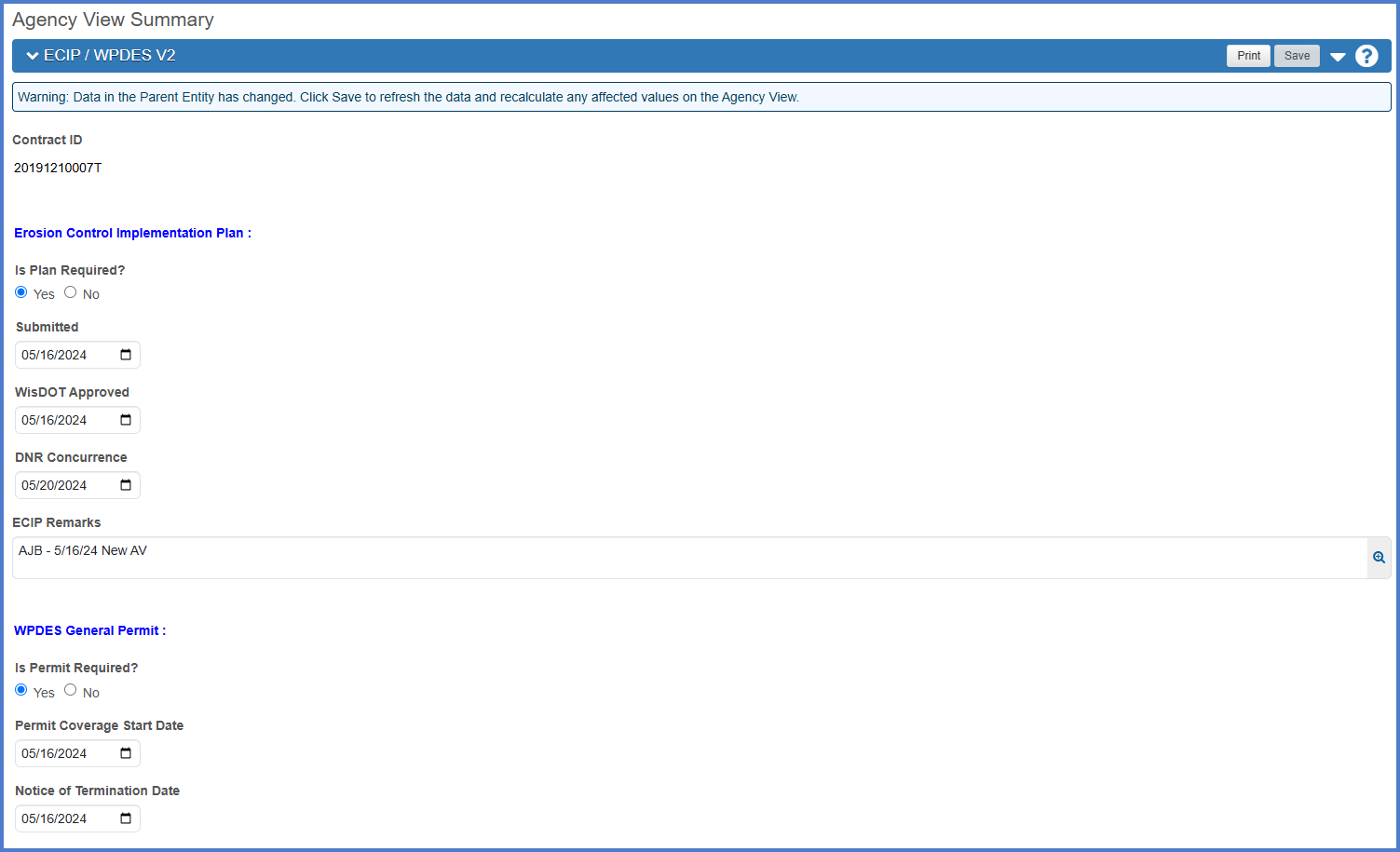
For more information, go to ECIP / WPDES Agency View.
Dates to enter prior to construction starting
The Contract Status Dates agency view (AV) is one of the several AVs tied to each contract in the system. There are four fields that are entered on this agency view. The rest of the fields are entered by the Contract Specialist, Compliance Specialist and the Project Engineer on the Contract Administration | Informational Times tab. Complete these steps to enter data on the Informational Times tab and refresh the Contract Status Dates agency view:
- On the Contract Administration Summary component, select the Informational Times tab.
- Search for the date to be entered using the filters or search for the field using the table below.
For example, for the Conditional Start Notice Date - CONDSTARTNOT-WI, enter the date and time in the corresponding Actl Compl field.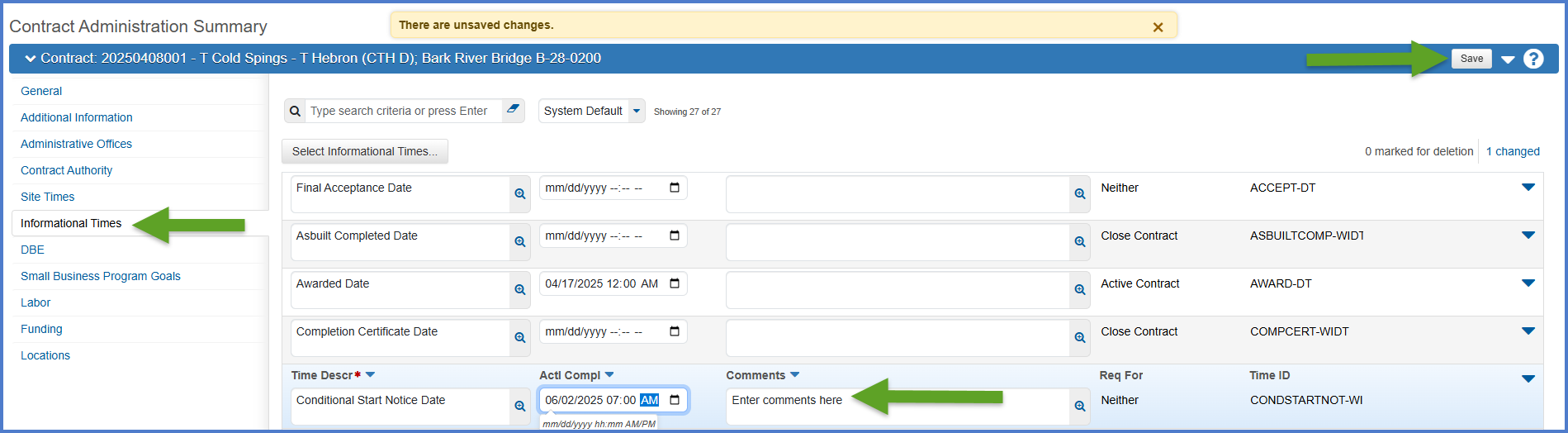
- Click <Save>.
- On the Contract Administration Summary component, expand Components Action Menu | Views | Contract Status Dates.
- From the Select Refresh to Reload Contract Dates drop down, select Refresh.
- Click <Tab> and wait for the <Save> button to activate. Click <Save>.
- Ensure the following dates have been entered for the contract. The table below identifies who enters the field and where it is entered. Enter any missing dates on the appropriate agency view or on the Informational Times tab.
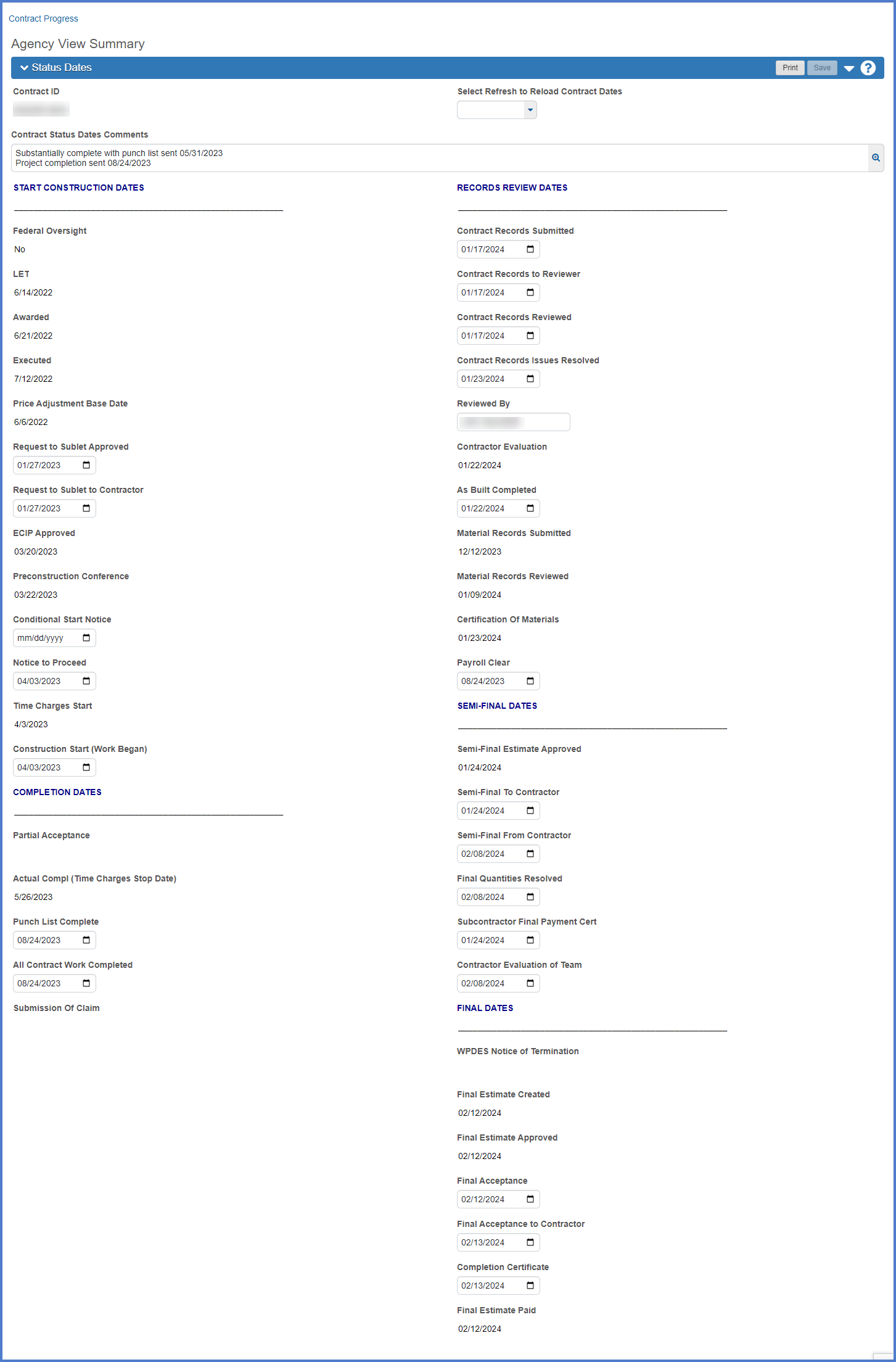
For more information, go to Contract Status Dates Agency View.
| Field | Required for Construction | Enter by | Entered where / field name | Description |
|---|---|---|---|---|
| Let | Yes | N/A | Transitioned from Preconstruction. |
This is the letting date of the contract. |
| Awarded | Yes | N/A | Transitioned from Preconstruction. | This is the awarded date of the contract. |
| Executed | Yes | BPD Proposal Development Section | Contract Administration |Informational Times tab Execution Date - EXEC-DT |
This is the execution date of the contract. |
| Request to Sublet Approved | Yes | Compliance Specialist | Contract Administration |Informational Times tab Request to Sublet Approved Date - RQSUBAPR-WIDT |
The date the region approved the Sublet Request report (DT1925) submitted by the contractor. |
| Request to Sublet to Contractor | Yes | Compliance Specialist | Contract Administration |Informational Times tab Request to Sublet to Contractor Date - RQSUBCONTR-WIDT |
The date the approved Sublet Request report (DT1925) was returned to the contractor. |
| ECIP Approved | No | Project Engineer | ECIP / WPDES agency view |
This date is entered on the ECIP / WPDES Agency View. |
| Preconstruction Conference | No | Project Engineer or Contract Specialist | Contract Documentation | Meetings tab |
The date of the Preconstruction Conference. This date is entered on the Contract Documentation | Meetings subcomponent. |
| Conditional Start Notice | Optional | Contract Specialist | Contract Administration |Informational Times tab Conditional Start Notice Date - CONDSTARTNOT-WI |
The date that a Conditional Start Notice was granted to the contractor to perform work in advance of the official start of work. The contract must be executed before the conditional start notice can be granted. If there are multiple Conditional Start Notice Dates, they should be entered and documented on the Informational Times tab. Enter the first Conditional Start Notice date in the date field and enter subsequent ones in the Comments field so the date field is recording the earliest date. |
| Notice to Proceed | Yes | Contract Specialist | Contract Administration |Informational Times tab Notice to Proceed Date - NTP-DT |
This is the date construction operations are authorized to proceed and the contractor can begin work on the contract on that date or within 10 calendar days as defined in Standard Spec 108.2. This is not necessarily the date of the Notice to Proceed letter. The Project Manager, Project Engineer and Contract Specialist will receive an email notification if the Time Charges Start Date is entered on the main site 00 contract time record and the Notice To Proceed date is blank. |
| Time Charges Start | Yes | Project Engineer | Contract Administration | Site Times | Site 00 | Units and Dates tab |
This date is entered on the Contract Administration | Site Times | Site 00 | Units and Dates subcomponent. |
| Work Start (Earliest onsite work) | Yes | Project Engineer | Contract Administration |Informational Times tab Work Start (Earliest onsite work) - WKBGN-DT |
The date the contractor begins any onsite work on the contract including anything allowed in a conditional start notice. This can, and in most cases, will be different from the Time Charges Start Date. |