Change orders
Last updated: 2026-04-27
Change orders are created to modify contract language, add new items, increase or decrease item quantities, or adjust contract site time.
 To view an existing change order
- Log into AASHTOWare Project
- From the dashboard (home screen), click home button action arrow and select the appropriate role.
Prime Contractors should select the Contractors role.
WisDOT non-field staff should select the ReadonlyConstr role.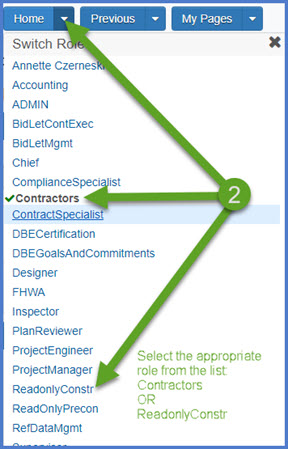
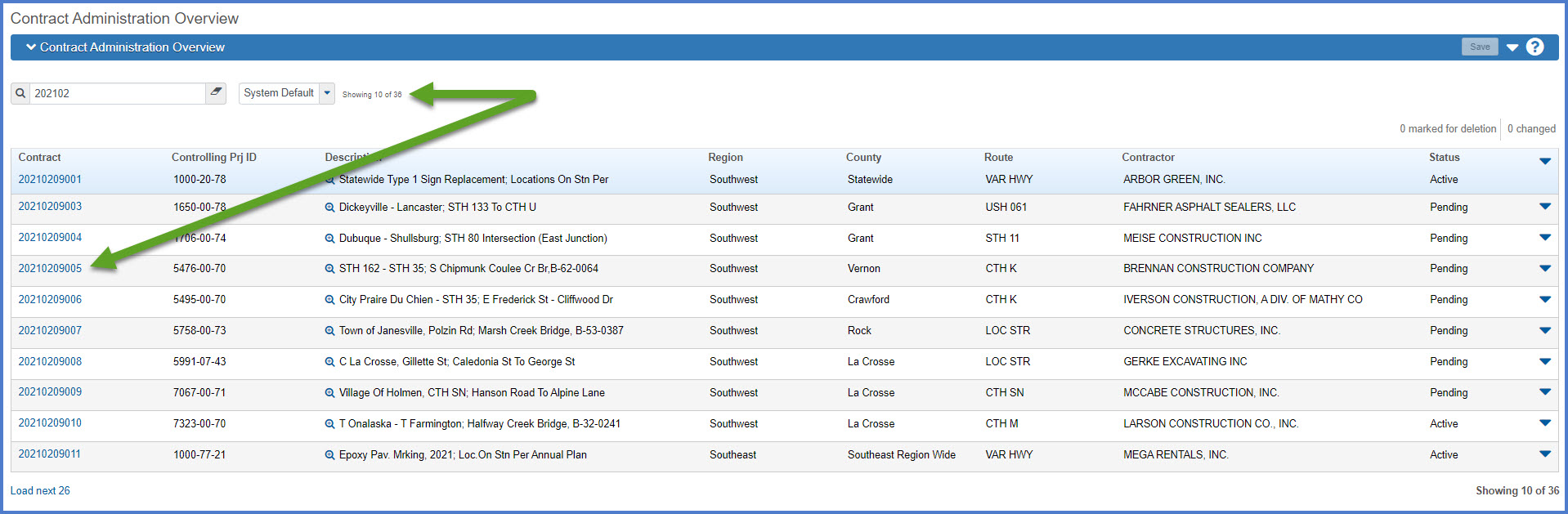
- Select the contract under Contract Administration Overview by searching for the Contract ID, controlling project ID, region, county or contractor in the search box.
Tip:
Go to How to Search for the Contract ID by Project ID if only an associated project ID is known. - Click on the contract ID hyperlink for the contract you are working on.
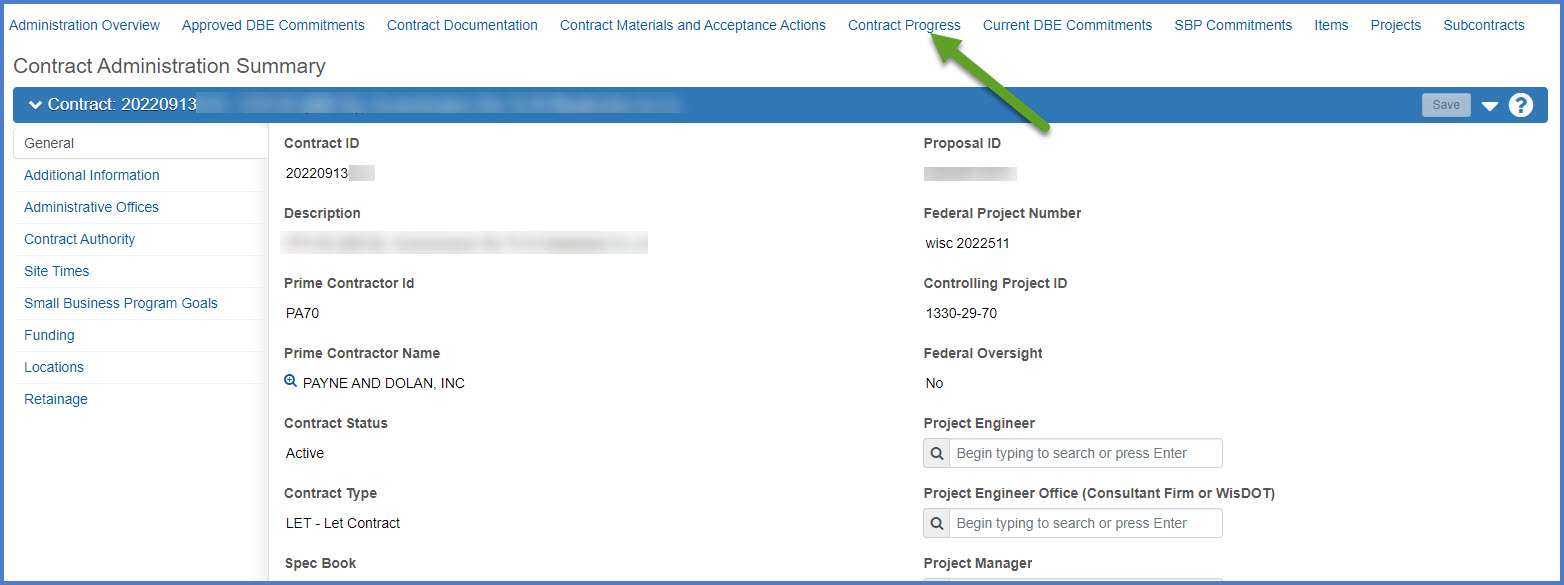
- Click the Contract Progress quick link located at the top of the screen.
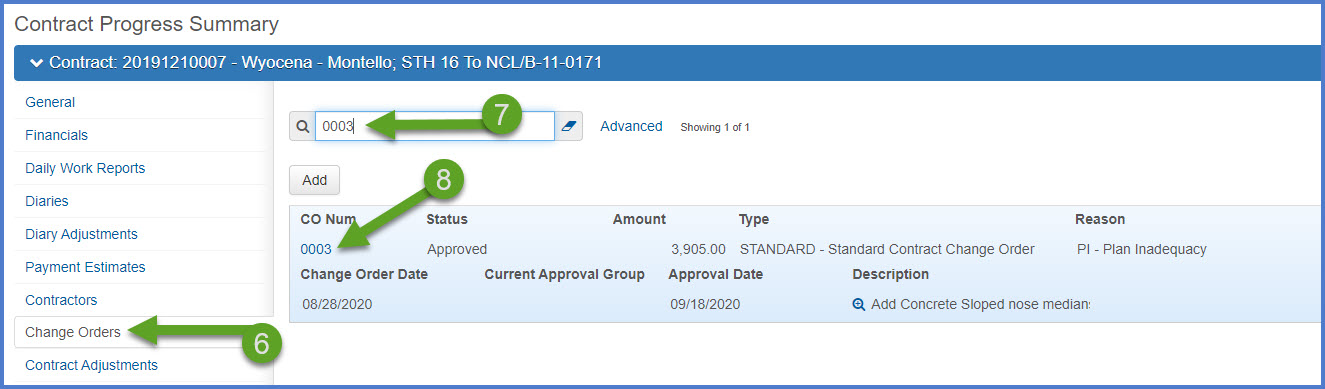
- Select the Change Orders tab.
- Select an existing change order from the current list. Search for the change order number in the search box. If there are more than 10 change orders, expand the list by clicking "Load next 50".
- Click on the change order number (co num) hyperlink to open the change order.
The Contract Change Order Summary component will open. The change order header displays the change order number, description, amount and status.
General tab
Information on this tab includes the change order number, approval date, author, change order description, description of changes, total for previously approved change orders, change order reason code, and change order type.
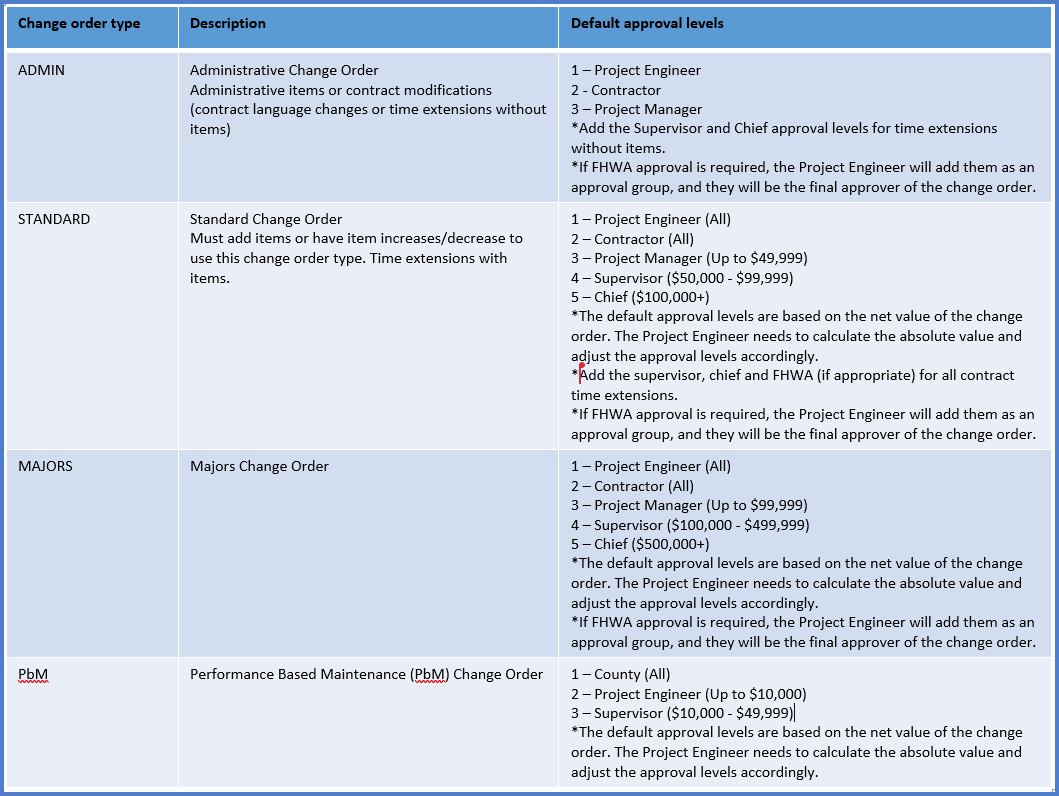
There are four system defined change order types:
Increase/Decrease Items tab
The Project Engineer can change item quantities for items that are part of this contract.
New Items tab
The Project Engineer can add new items not previously associated to this contract.
Change Order Item Explanations tab
The Project Engineer can enter the same change order item explanation for multiple items on this tab.
Time Adjustments tab
The Project Engineer can enter contract site time adjustments on this tab.
Approval Tracking tab
Displays the status of the change order in the approval process and the status of each change approval group. Change order statuses include:
- Draft - Initial creation of and editing status.
- Pending Approval - The Project Engineer submits the change order for approvals based on change order type (see table above). System notifications are sent to each change order approver when it is their turn to review and approve the change order electronically.
- Approved - When final approval is received, a system email notification is sent to the Project Engineer, Contractor, Project Manager and Contract Specialist. The change order is locked and cannot be changed. The historical change order report is created.
- Rejected - A change order can be rejected by a change order approval group. The Project Engineer and Project Manager should meet to discuss how to handle a rejected change order (e.g. update it and resubmit for approval, delete it, deny it, etc.).
- Deleted - If the change order is the last one that was created, the Project Engineer can change the status to deleted and it will not be included in the contract.
- Void - If the change order is not the last one that was created, the Project Engineer needs to work with the AWP System Administrators to change the status to void and it will not be included in the contract.
How to print the Change Order Report
Complete these steps to print the change order report from the Contract Change Order Summary component.
- Select the Component Action Menu | Reports | Change Order Report for the current version of the report during the change order creation and approval process.
OR - Select the Component Actions Menu | Historical Reports | Change Order Report for the final version of the report after final approval with all electronic signatures. The report can be viewed, printed or saved.